Smart Home with
SmartThings


Do the SmartThings! Enjoy the convenience of Smart Home right from your
Samsung Smart TV. With SmartThings1, you can effortlessly connect compatible
devices and use them to optimise your daily routine, energy consumption,
and more — creating a lifestyle tailored to your needs.
Do the SmartThings! Enjoy the convenience of Smart Home right from your Samsung Smart TV. With SmartThings1, you can effortlessly connect compatible devices and use them to optimise your daily routine, energy consumption, and more — creating a lifestyle tailored to your needs.


Connect your home devices for a smarter lifestyle
SmartThings
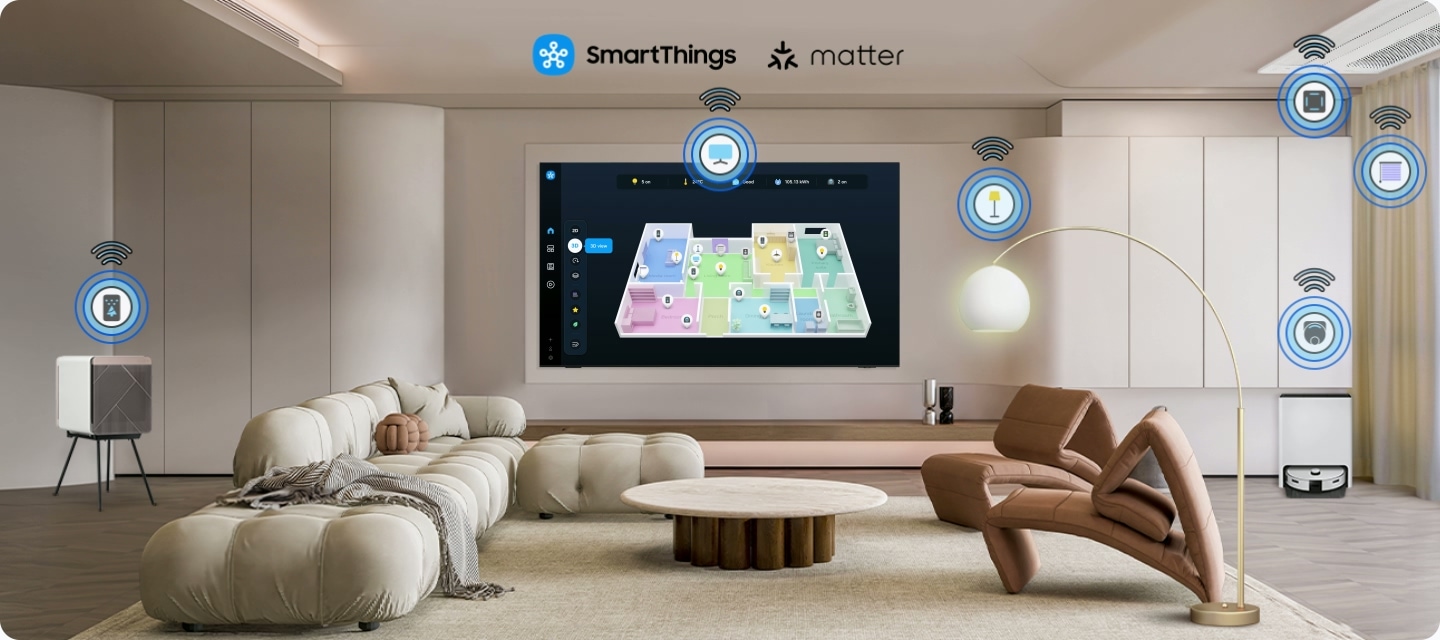
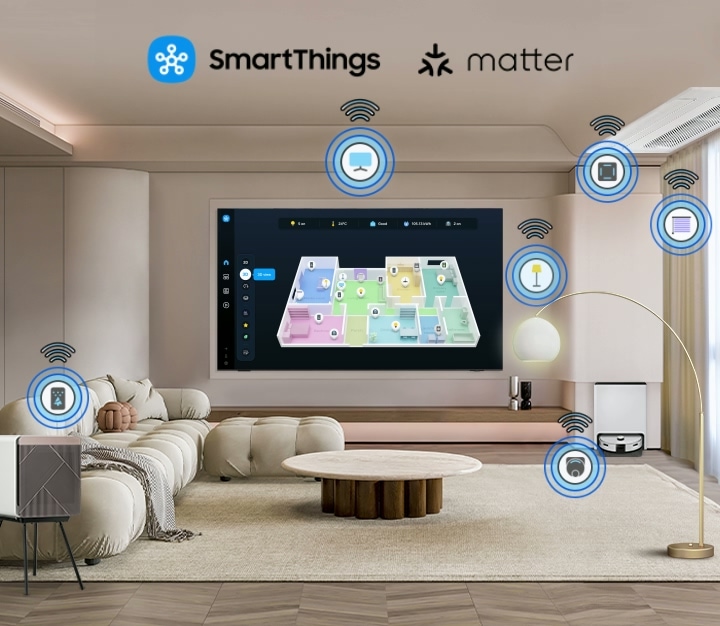
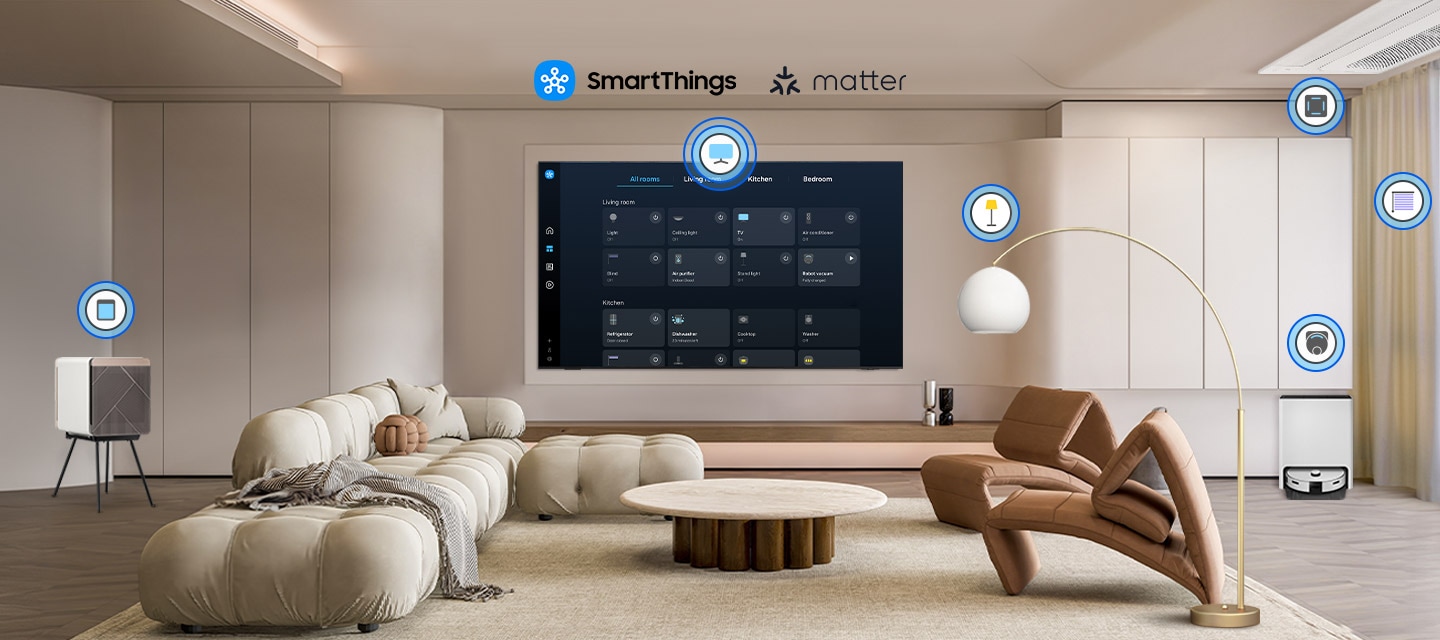
With a Built-in SmartThings1 Hub, your TV can connect and control smart devices — even those requiring Matter and HCA compatibility. You can also get information about your smart home straight from the screen, including a 3D Map View2 that shows your entire smart home system at a glance.
Pet Care
Use your TV as a pet-sitting assistant when you're outside. Your TV can detect noises like barking through its microphone, and then automatically turn on your pet's favorite content to calm them down.3


Universal Gestures
Easily control your TV with your smartwatch. Just wear your Galaxy Watch and use hand gestures, like pinching to select an option, or moving your wrist back and forth for pause and play.4


Storage Share
Seamlessly stream the multimedia stored in your Galaxy devices on your TV. With automatic detection of nearby devices, Storage Share5 makes sharing content across Samsung devices effortless.


Save energy with intelligent analysis
AI Energy Mode
Energy saving made easy with SmartThings. By turning on AI Energy Mode6, it auto detects surrounding light levels and analyses usage behaviors to adjust the brightness. Also, it analyses the content scene-by-scene to subtly adjust brightness where possible, to manage energy consumption.


Elevate your day with curated lifestyle experiences
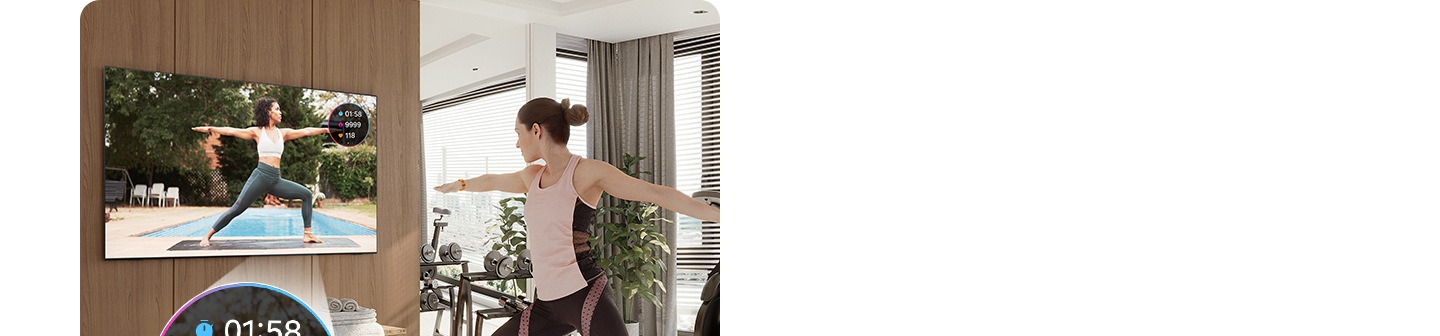
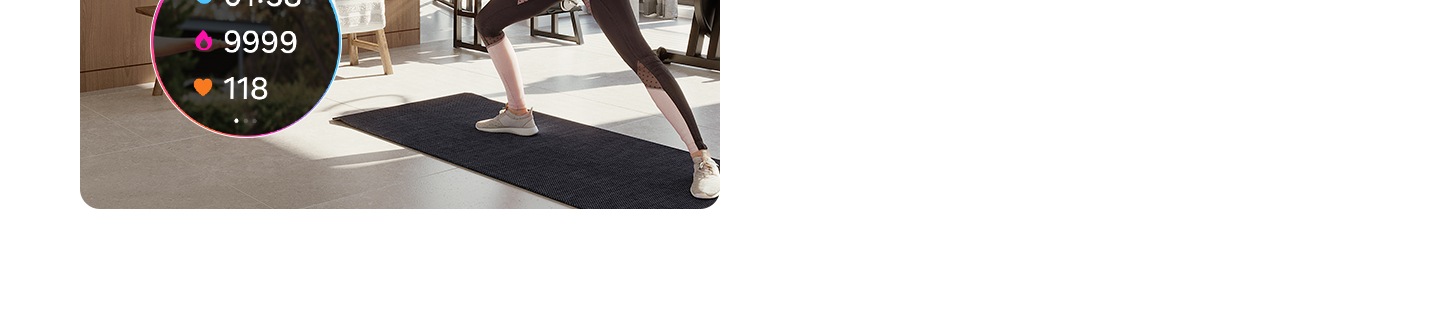
Workout Tracker
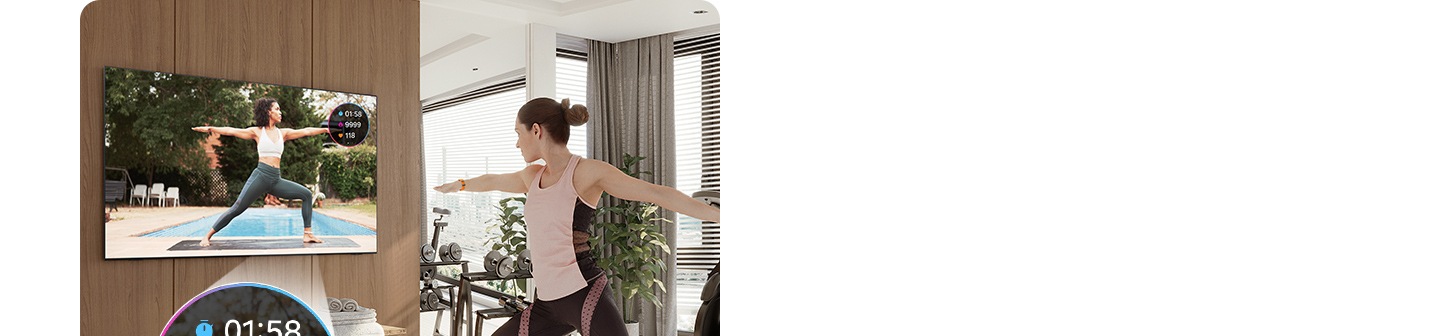
Efficiently track your progress while watching content. Real-time data such as heart rate and calories burned is displayed when you connect your Galaxy Watch to your TV.9
Access useful info even when your TV is off
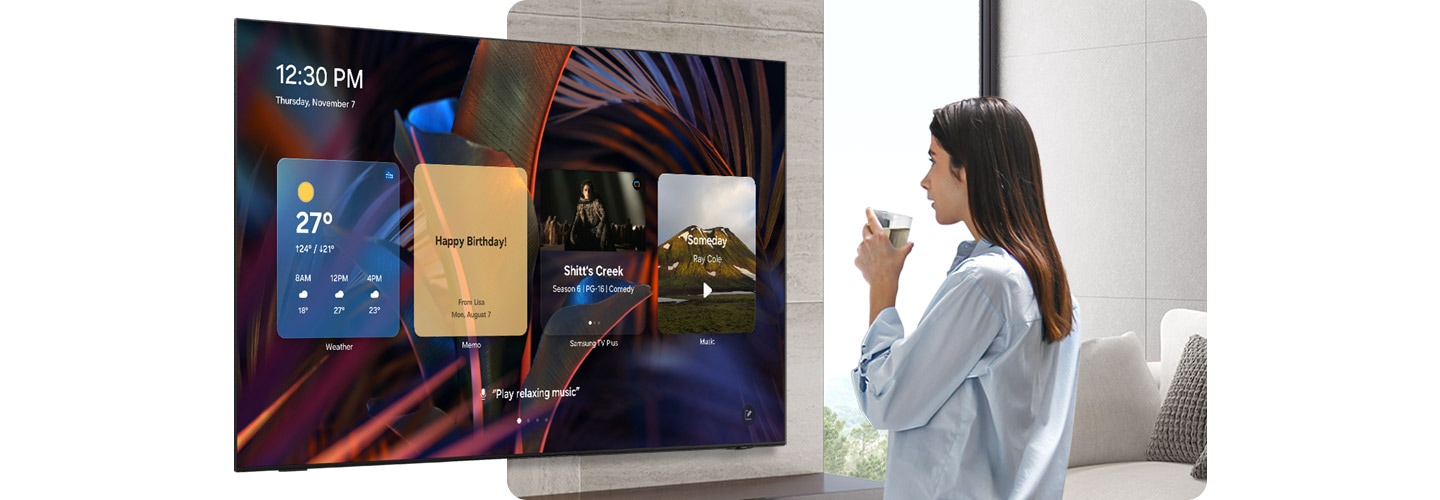

Daily Board
Have useful widgets appear on your TV throughout the day. Even when your screen is off, your TV can detect when users come nearby and activate to display Daily Board10. You can customise it with widgets like Weather, Memo, Music and more. Daily Board can also be activated hands-free by voice command.
How to use AI Energy Mode with the SmartThings app
Use the SmartThings app to control AI Energy Mode. You can turn it on and off, set custom monthly targets, select which devices to operate on and more.

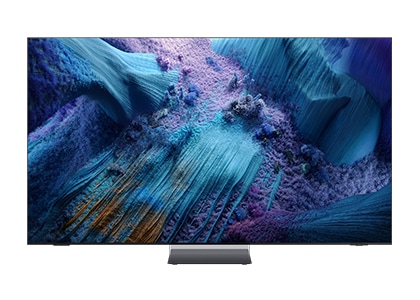
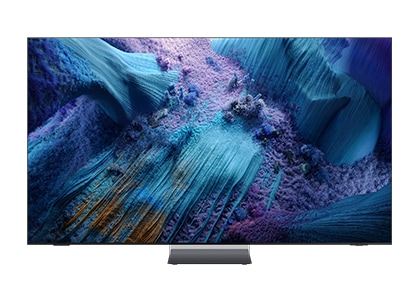
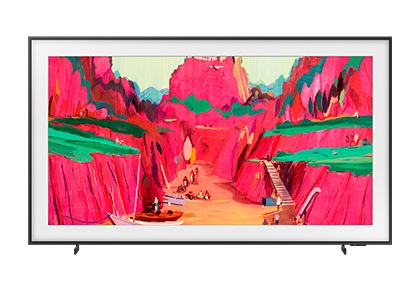
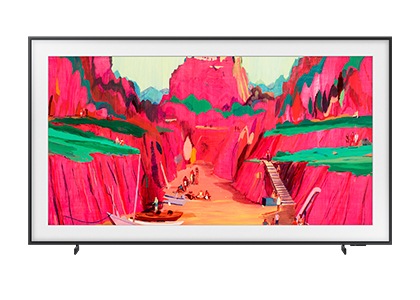
Explore Smart TVs
| table product |
|


|


|


|
|
|---|---|---|---|---|---|
| Overview | Absolute 8K, above all | Infinite blacks with self-lit display | Our most advanced TV experience | Brilliant, long-lasting color | Your Art Gallery on TV |
| Screen Size | 98/85/75/65" | 83/77/65/55/48/42" | 115/100/98/85/75/65/55/50/43" | 85/75/65/55/50/43" | 85/75/65/55/50/43" |
| table item cta |
FAQ:
All About Samsung Smart Home
-
What is Samsung Smart Home?Samsung Smart Home is Samsung’s all-in-one smart living platform that connects devices like TVs, refrigerators, washing machines, lights, smart locks and more to make everyday life simpler and more convenient.
You can manage and control these devices through the SmartThings app, a centralized hub that lets you connect, monitor and operate your smart home with ease. Most Samsung TVs come with SmartThings built in, so you can use your TV as a smart home manager without needing extra hardware.
With features like Pet Care, Universal Gestures, Storage Share, 3D Map view and hands-free control using voice assistants, Samsung Smart Home brings added value — enabling TV control, smart device connectivity, home appliance management and family care. -
How do I pair my Samsung TV with my phone?There are two main ways to pair your Samsung TV with your phone, using Tap View or the SmartThings app.
To use Tap View, follow the simple steps below.
1) Open the SmartThings app on your smartphone.
2) Tap Menu, then Settings.
3) Enable Tap View, Tap Sound, and tap OK to confirm.
4) Gently tap the back of your phone against the bezel of your TV, avoiding corners and the screen itself.
5) On your phone, tap Start Now.
6) When a prompt appears on your TV, select Allow to complete the pairing.
To use the SmartThings app, follow the simple steps below.
1) Make sure your phone and TV are connected to the same Wi-Fi network.
2) Download the SmartThings app onto your phone.
3) Once installed, open the app and tap Add Device.
4) Choose your TV by scanning a QR code, detecting nearby devices, or selecting it from the list of available devices.
5) Once you've selected your TV, a PIN code will appear on the TV screen. Enter the PIN in the SmartThings app on your phone.
Once the connection has been made, it's easy to share mobile content to the big screen. From the app, simply tap on Menu, then select Mirror screen (Smart View). -
What devices work with SmartThings?SmartThings is designed to work with a wide range of smart home devices — not just Samsung products, but also numerous third-party brands. It supports multiple communication standards, including Wi-Fi and the newer Matter standard, making it one of the most versatile smart home platforms available.
Compatible devices span several key categories:
• Lighting: Smart bulbs, switches, and light strips
• Sensors: Motion sensors, door and window sensors, temperature and humidity sensors, and leak detectors
• Security: Smart locks, cameras and video doorbells
• Climate: Smart thermostats for HVAC control
• Samsung Appliances: Refrigerators, washing machines, TVs and other Galaxy devices with native SmartThings support
Beyond individual devices, SmartThings also integrates with major voice assistants and ecosystems like Amazon Alexa and Google Home, enabling cross-platform control from a single app.
If you're unsure whether a specific device is compatible, you can check directly in the SmartThings app by searching by product name or browse the SmartThings website for the full compatibility list. -
Do I need a hub to use SmartThings?You don't necessarily need a hub to use SmartThings — it all depends on the types of devices you plan to connect.
Wi-Fi, Bluetooth- and Matter-based devices can connect directly to the SmartThings app without any additional hardware. This covers a wide range of common smart home devices like plugs, bulbs and Samsung appliances.
A hub becomes necessary when you want to use devices that run on Zigbee or Z-Wave protocols. Since these protocols don't connect directly to Wi-Fi, a hub acts as a bridge between those devices and your home network. That said, some Samsung Smart TVs and appliances have a hub built in, so you may already have what you need without purchasing a separate device. -
Is Samsung SmartThings compatible with Matter?Yes, Samsung SmartThings is fully compatible with Matter. Samsung has been one of the early adopters of the standard, with SmartThings supporting Matter integrations since October 2022 — and has since expanded support to Matter 1.5.
SmartThings functions as a Matter controller, meaning you can add and control Matter-certified devices (lights, plugs, sensors, door locks and more) directly within the SmartThings app without needing separate brand-specific apps. This makes it easy to manage devices from different manufacturers in one place.
Several Samsung products also double as Matter hubs, including select Samsung TVs, Smart Monitors, Family Hub refrigerators and SmartThings Stations. These built-in hub functions allow Matter-compatible devices to connect seamlessly without requiring a separate hub. -
How many devices can SmartThings handle?SmartThings doesn't have a single fixed device limit — it depends on how your devices connect and how your setup is configured. The most important number to know is the per-location cap of around 300 devices, though this can vary based on your network environment.
For devices connected directly to a hub, such as Zigbee and Matter devices, there is theoretically no limit on the number of devices you can connect to a hub, provided that the per-location cap of 300 devices is not exceeded. However, for stable operation, we recommend a maximum of approximately 100 devices per hub.
For Wi-Fi or cloud-connected devices, the limit is much less strict — many users run hundreds of devices in a single SmartThings location without hitting a hard ceiling. That said, network congestion, hub memory, and automation complexity can all affect performance well before you reach any official cap.
In short, SmartThings manages devices by location (up to 10 locations per account and approximately 300 devicess per location), but in practice your network environment is often the bigger limiting factor than any software ceiling. -
Is there a monthly fee for SmartThings?No, SmartThings does not require a monthly fee. The core features — including device control, automations and routines — are completely free to use once you've purchased your devices. Simply download the SmartThings app and get started at no additional cost.
However, there are a few exceptions worth knowing. Certain advanced features or third-party integrations may come with their own subscription costs. For example, professional home security monitoring is a separate paid service, and some connected devices, such as certain cameras, may require their own subscription plans that are independent of SmartThings itself. -
How do I connect my device to SmartThings hub?Connecting a device to your SmartThings hub is straightforward using the SmartThings app. Here's how:
1. Install the SmartThings app: Download it from the App Store (iOS) or Play Store (Android) and sign in to your Samsung account.
2. Make sure your hub is ready: Power on your SmartThings hub and confirm that it's connected to the internet.
3. Put your device into pairing mode: Follow the manufacturer's instructions, typically by holding the reset or pairing button until the LED blinks.
4. Add the device in the app: Go to the Devices tab, tap the + icon, then choose one of the following:
• Scan QR Code (for supported devices)
• Scan Nearby to auto-detect devices in pairing mode
• By Brand/Model to manually select your device
5. Assign a name and room: Once connected, name your device (for example, ""Living Room Light"") and assign it to a room for easier control.
Discover more of Samsung Smart TV
- Images simulated for illustration purposes. Any changes in UI or appearance and design specifications may occur without prior notice. UI may vary by region.
- The detailed specifications may vary depending on the model so refer to the product details page for more information.
- SmartThings: Available technology, functions and features may vary by country, service provider, network environment or product, and are subject to change without notice. Requires a Wi-Fi, Bluetooth or other wireless network connection and login to Samsung account. Connected devices are sold separately. UI is subject to change without prior notice.
- 3D Map View: This function may not be available depending on the device. TV and mobile device must be connected to SmartThings to use 3D Map View function. For a detailed list of supported devices, visit https://partners.smartthings.com/supported-devices.
- Pet Care: TV and mobile device both must be registered under the same Samsung account to receive notifications. The sound sensor is available on Q8F and above models. The sound sensor must be activated from the SmartThings app on TV or mobile. TV can detect the barking sound only when the TV is turned off. TV must be connected to a power source to use this feature.
- Universal Gestures: Available apps and services may vary and are subject to change without notice. Only supported on Galaxy Watch4 and later models, and Wear OS 5 and higher versions.
- Storage Share: Each device must be registered with a single Samsung account with Storage Share Settings On, Wi Fi On, and Bluetooth On. Storage Share is supported in selected Galaxy phones and tablets released in 2023 or later, with One UI 7.0 and above.
- AI Energy Mode: Energy saving rate may vary by region, model, size, viewing conditions and type of content. Products shipped in Eco Mode have some AI Energy Mode functions enabled by default, so energy saving levels when AI Energy Mode is turned on may appear lower compared to Standard Mode. AI Energy Mode does not work with Game Mode. Energy savings are based on internal test results and may vary depending on the content being displayed and surrounding brightness levels.
- Karaoke: This feature is not available in China.
- Workout Tracker: Supported devices are Galaxy Watch4 and later models with Galaxy Mobile (One UI 4.1.1 and above) with latest software version. Devices must be logged into the same Samsung account. Place your watch and mobile device near your screen to use Workout Tracker.
- Daily Board: Supported widgets vary by region and are subject to change without notice.
