Use AI features on the Galaxy A17 5G, A37 5G, and A57 5G

The Galaxy A37 5G and A57 5G, alongside the Galaxy A17 5G, introduce Awesome Intelligence for smarter, more efficient experiences. Features include a default digital assistant, Gemini integration, Seamless action across apps, and Circle to Search. The A37 5G and A57 5G models also offer smart capture with AI Select, Read Aloud in Samsung Internet, and AI editing tools in the Gallery. Unlock your device's full potential for seamless, intuitive use.
Galaxy A17 showing Circle to Search with Google on a photo of a cat wearing an orange beanie.

Use AI features on the Galaxy A17 5G, A37 5G, and A57 5G

Note
  • Galaxy AI photo editing requires a Samsung account login and internet connection. Editing with Generative Edit results in a resized photo up to 12MP depending on model.
  • Galaxy AI basic features provided by Samsung are free. Any Samsung enhanced AI features and all third party AI features are subject to different terms and may be subject to fees. (Galaxy AI basic features are listed under "Advanced intelligence" in Samsung Services Terms and Conditions.)

Use Circle to Search with Google

Note
  • Circle to Search is available on select phones and tablets running Android 14 with One UI 6.1 or higher. If the feature is not available on your device, it may not be compatible. Ensure your device is updated.
  • Circle to Search may not work in apps restricted from screen capture due to copyright or sensitive information like video streaming services or banking apps.
  • An internet connection is required to use Circle to Search. Results may vary by uniqueness, clarity, and framing of circled images, as well as other related factors.
Circle to Search is a feature that lets you quickly find information about objects, items, or content by circling them on your screen.

Turn on Circle to Search

  1. Swipe down from the top right corner of the screen to open the Quick settings panel. 
  2. Tap the Settings icon (it looks like a gear), then tap Display.
  3. Tap Navigation bar, and then make sure the Circle to Search switch is on.
    Settings menu showing the Circle to Search toggle switch in the on position with a blue border.

Use Circle to search with the Home button

  1. Open your desired app, and then touch and hold the Home icon on the navigation bar when you find an interesting object or item. If you're using the Camera app, point your phone at an item first, and then touch and hold the Home icon.
  2. Then, use your finger to circle the item of interest. You can also tap the item.  
  3. AI will provide related search results; swipe up on the results at the bottom of the screen to view more. To get more out of your search, tap Dive Deeper in AI mode at the very bottom of the screen to ask questions regarding your search query and receive context-relevant follow-up results.
    Search result for Pistachio Tiramisu with a blue border highlighting the Dive deeper in AI Mode box.
  4. Select a result to open it in a new window. Depending on the searched item, you may see additional articles, videos, or apps. 
  5. When text is detected, you can tap Copy to extract text to your clipboard, or tap Translate to receive an instant translation.

Use Circle to Search with Google Assistant

  1. Navigate to and open an app (for example, Chrome or Samsung Internet), and then touch and hold the Home icon on the navigation bar when you find something interesting.  
  2. Then, use your finger to circle the item of interest. You can also tap the item.  
  3. Next, tap Add to your search in the Google search bar.
    Google search interface on a phone with a blue border highlighting the Add to your search button.
  4. Type a query or request, such as “find the best price” or “does it come in red?” Then, tap the Search icon to generate a new search. 
    Note: You can also tap the Voice search icon (the microphone) and start speaking.
  5. Browse the results and then make your selection. You can also continue typing requests or commands into the search bar.
Read less

Use Google Gemini as the digital assistant

Gemini is an AI-powered assistant that simplifies your tasks by seamlessly accessing multiple apps like Google Maps, Calendar, YouTube, and other apps. With Gemini, you can ask questions, find information, or issue commands without switching apps.

Set your default Digital assistant

First, set Google as your default digital assistant.

  1. Swipe down from the top right corner of the screen to open the Quick settings panel. 
  2. Tap the Settings icon (it looks like a gear), and then tap Apps.
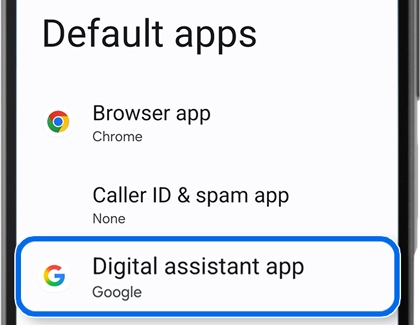
  3. Tap Choose default apps, and then tap Digital assistant app.
    Default apps menu on a phone with the Digital assistant app option highlighted by a blue border.
  4. Tap Digital assistant app again, and then tap Google.
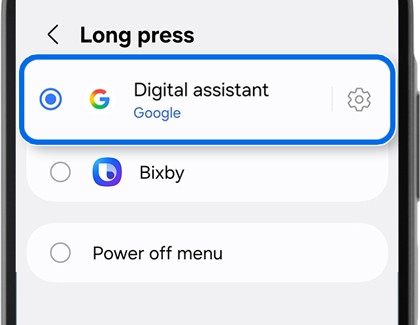
  5. To use Google with the Side button, tap the Back button four times to return to the main Settings menu, and then tap Advanced features. Tap Side button, and then tap Long press. Tap Digital assistant, and then tap Google.
    Digital assistant selection menu with the Google option selected and highlighted by a blue border.

Use Google Gemini

Gemini integrates with apps like Google Maps, Calendar, and YouTube for seamless tasks.

  1. Press and hold the Side button to activate Gemini.
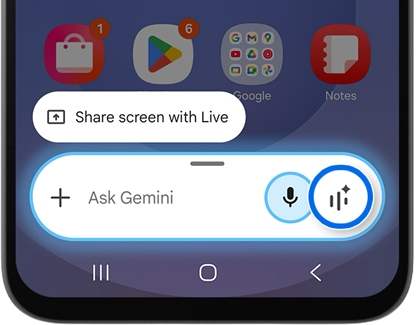
  2. Tap the Live icon (the three vertical lines with a star) and listen to the introduction.
    Gemini assistant bar on a home screen with a blue circle highlighting the Gemini Live sparkle icon.
  3. Next, review the Go Live with Gemini information. Swipe to and tap OK.
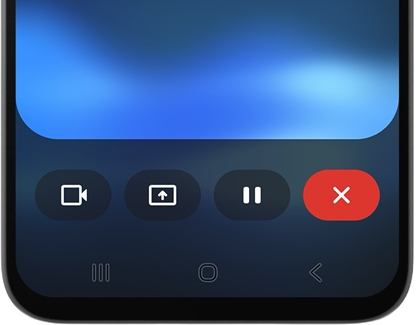
  4. Begin conversing with Gemini about a topic of your choice on the Live with Gemini screen. Gemini will answer you with information, resources, and tips. The following options are available on the Live with Gemini screen: 
    • Video: Gemini can use your camera to see nearby items. Tap the Video icon, and then position your phone at something. Ask a question about the object; Gemini will provide details related to the object.
    • Share screen: To share your screen with Gemini, tap the Share screen icon, select your desired option from the drop-down menu, and then tap Share screen. To turn off screen sharing, swipe down from the top right or center of the screen to open the Notification panel, and then tap the down arrow on the Google screen share notification. Tap Stop sharing.
    • Pause: Tap the Pause icon to pause your conversation. Tap the Live icon to resume your conversation.
    • Close: Tap the Close icon to exit Live with Gemini.
      Bottom of a phone screen showing four navigation icons including a red X icon for closing a task.
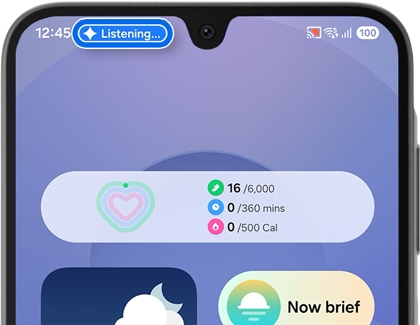
  5. Gemini will still be available even if you navigate away from the Go Live with Gemini screen. Tap Listening… in the top left corner of the screen to open a “Live with Gemini” bar at the top of the Home screen. Tap the Live icon to continue chatting.
    Top of a phone screen with a blue bubble highlighting a listening notification from Google Gemini.
  6. To place Live with Gemini on hold, tap the Pause icon on the bar. To exit Live with Gemini, tap the Close icon on the bar.
Read less

Use seamless actions across apps with Gemini

Enjoy seamless multitasking on your Galaxy phone, where you can accomplish complex tasks across apps with a single command using Gemini, eliminating the need to switch between them.

  1. Just press and hold the Side button to launch Gemini.
  2. Next, use the keyboard or your voice to give a command, such as: 
    • "Find a nearby Thai restaurant with outdoor seating and a casual dress code, and text the information to Mom." 
    • "Look up the next ten Giants football games and add them to my notes."
  3. While watching videos, press and hold the Side button, tap Ask about video, and then give a command, like "Summarize the main points of this video and save it as a note."
    Gemini assistant overlay on a video with the Ask about video option highlighted by a blue border.
Read less

Use AI tools to enhance pictures and videos

Note
  • Best face is only available on the Galaxy A57 5G.
  • Motion Photo must be turned on. Best face captures a Motion Photo up to 3 seconds. Will identify and provide results for up to 5 people. Resulting image up to 12MP.

Best face

Capture the perfect moment with the Best Face feature, which intelligently selects the most flattering photo from multiple shots in Motion photo mode based on focus, lighting, and facial expressions.

  1. Open the Gallery app, and then select the group Motion photo you want to edit.
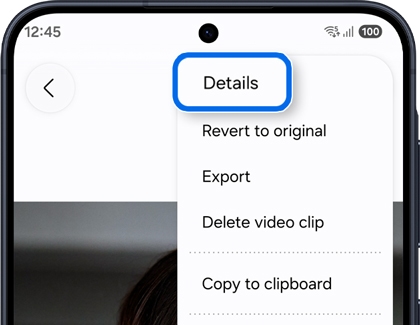
  2. Tap More options (the three vertical dots) or swipe up on the photo instead to access additional settings. Then, tap Details.
    A Galaxy A57 5G showing a photo menu with the Details option highlighted in a blue box.
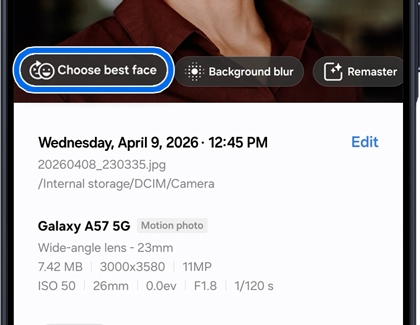
  3. Tap Choose best face on the photo.
    A Galaxy A57 5G showing photo details with the Choose best face option highlighted in a blue box.
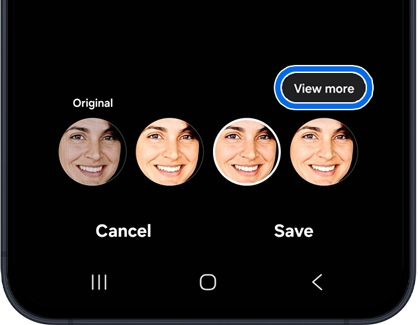
  4. At the bottom of the screen, you’ll see various facial expressions to choose from. Select the one you prefer for your photo.
    • If you need more options, tap View more to explore additional facial expressions. Select your desired option to apply it.
    • To return to the original option, tap Previous.

    • A Galaxy A57 5G screen showing different facial expressions from a motion photo with the View more button highlighted in a blue box.
  5. When you’re finished selecting the best facial expression, tap Save. You can choose to Save or Save copy to keep the edited photo.
Note
Auto trim is only available on the Galaxy A57 5G.

Auto trim

Effortlessly refine your videos by removing unnecessary pauses or blank sections with the Auto Trim feature. This tool helps you create polished, professional-looking videos in just a few simple steps, saving you time and effort.

  1. Open the Gallery app, and then select Menu (three horizontal lines) from the bottom of the screen.
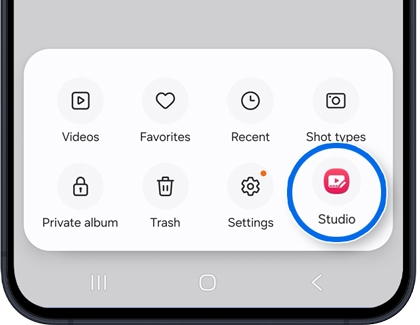
  2. Tap Studio or Go to Studio, then tap Start a new project.
    A Galaxy A57 5G screen showing gallery options with the Studio icon highlighted in a blue circle.
  3. Tap on the desired video(s) to edit, and then tap Done. Or, tap Search, swipe to the Shot types section, and then tap Video to choose your video(s).
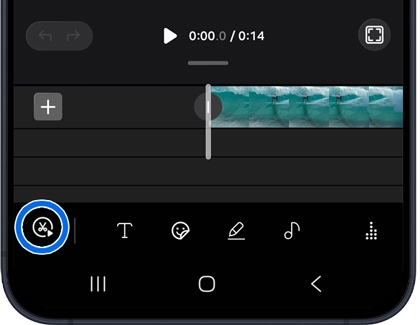
  4. When the editing screen appears, tap the Auto trim icon (the scissors) at the bottom left.
    A Galaxy A57 5G screen showing a video editing timeline with the clip edit icon highlighted in a blue circle.
  5. In the editing menu, select Auto trim.
  6. The Auto Trim will automatically analyze your video and suggest a trimmed version that removes unnecessary parts, such as pauses or blanks.
  7. Tap the Play icon to view the Auto version.
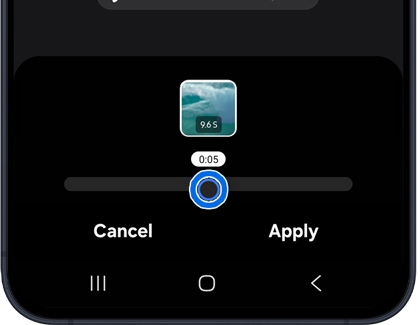
  8. Tap the Custom length icon, and then drag the slider to manually adjust the length.
    A Galaxy A57 5G screen showing a video speed slider with the adjustment handle highlighted in a blue circle.
  9. Tap Apply to finish.
  10. To enhance your video, touch and hold a clip, and then drag and drop the clip to reorder the sequence.
  11. To add fun elements, tap the TextStickersDraw, or Audio icons. Then tap Apply to save the changes.
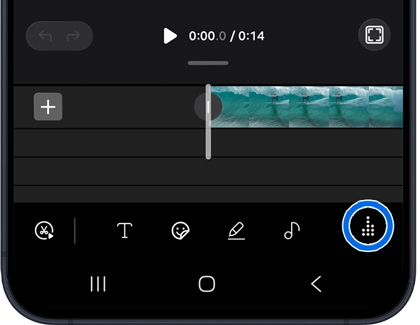
  12. To spice up your video with a license-free soundtrack, tap the Soundtrack icon.
    A Galaxy A57 5G screen showing a video editing timeline with the movie magic icon highlighted in a blue circle.
  13. To check the final results, tap the Play icon, and then tap Done to save the changes.
  14. Tap Edit to add a title to your video.
  15. Tap Save movie to save your video. Or, tap Delete to delete the video.
Note
Object eraser is only available on the Galaxy A37 5G and A57 5G.

Object Eraser

Easily enhance your photos by removing unwanted objects or distractions with the Object eraser feature. Whether it's a stray object or an accidental photobomb, this tool helps you achieve cleaner, more polished images effortlessly.

  1. Open the Gallery app, and then select a photo.
  2. Tap the Intelligence features icon (the three stars).
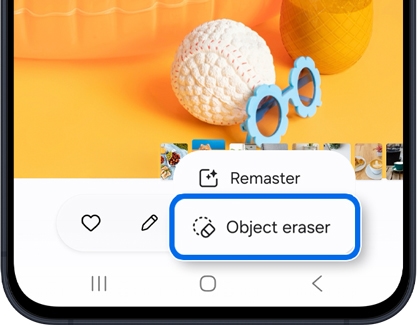
  3. Tap Object eraser.
    A Galaxy A series phone showing a photo of a ball and sunglasses with the Object eraser option highlighted in a blue box.
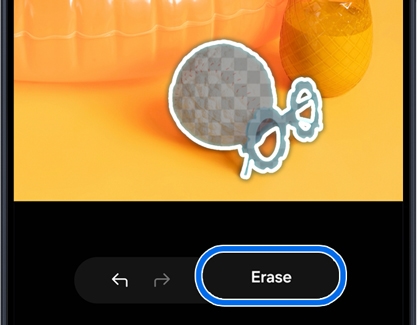
  4. Tap or draw around the object to remove, then tap Erase.
    A Galaxy A series phone screen showing an object in a photo selected for removal with the Erase button highlighted in a blue circle.
  5. Galaxy AI will remove the unwanted detail and fill in the photo’s missing parts.
  6. Tap Save or Save copy to save your changes.
Note
  • Filters are available on the Galaxy A37 5G and A57 5G.
  • Filters may vary based on resolution and aspect ratio settings. If the existing filters don't meet your needs, you can create your own. Up to 99 custom filters can be designed and stored on your device.

Filters

Enhance your photography experience by creating and applying custom filters tailored to your style. Whether you want to add a unique touch to your photos or experiment with creative effects, a customized filter can make it happen.

  1. Open the Camera app
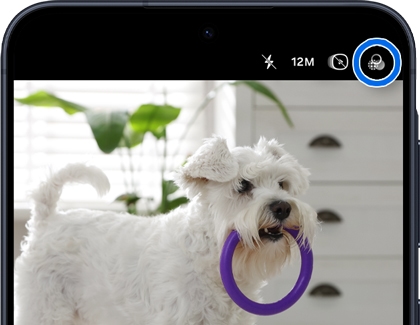
  2. In the PHOTO mode, tap the Filters icon.
    A Galaxy A series phone screen showing a photo of a dog with the filters icon in the top right corner highlighted in a blue circle.
  3. In the viewfinder, frame your subject and swipe to select a filter.
    Note: You can tap the '+' icon to create a new filter.
  4. To compare, select View original.
  5. When you’re ready, tap the Capture button.
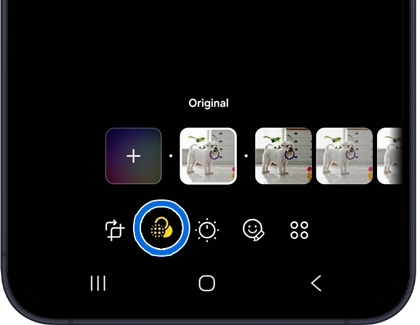
  6. To adjust or change the filter on an existing photo, open it in the Gallery app. Tap the Edit icon (a pencil), then the Filters icon (three circles) to modify the filter's intensity or select a different one. For deleting or reordering filters, touch and hold the desired filter and select the appropriate action. Tap Save to save your changes.
    A Galaxy A series phone screen showing the photo editor with the filters icon in the bottom menu highlighted in a blue circle.
Note
Edit suggestions are limited on the Galaxy A17 5G.

Edit suggestions

AI examines your photos and provides editing recommendations to enhance them. These suggestions are tailored to each image, and in some cases, no recommendations may be displayed.

  1. Navigate to and open the Gallery app, and then select a picture you'd like to edit.
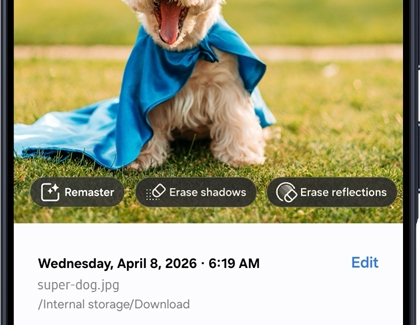
  2. Swipe up on the image and then tap the available edit suggestions. For instance, you may see options for Remaster, Erase shadows, or Erase reflections.
    A Galaxy A series phone screen showing a photo of a dog in a blue cape with Remaster, Erase shadows, and Erase reflections options displayed.
    Note: You may need to tap the details icon (“i”) to view the edit suggestions.
  3. Select your desired suggestion and then follow the instructions to apply the changes. You may need to tap or draw around objects or adjust a slider bar.
Read less

Use AI select to capture your screen

Note
AI select is only available on the A37 5G and A57 5G.

When you encounter an interesting article, use AI select to capture and save the text from your screen. Follow these steps to get started:

  1. Swipe open the Edge Panel, and tap AI select (Smart select).
  2. Draw around the area of the screen you want to capture. Or, tap on an on-screen object to automatically select it.
    A Galaxy S26 using the AI select tool to capture a specific section of a screen featuring a promotion for a fridge.
  3. Drag the corners of the selection to modify the shape and size as needed.
    Note: Depending on your selection, different options may appear.
  4. Tap the More Options (three vertical dots) icon to view all available choices, and then choose an action:
    A Galaxy S26 using the AI select tool with the more options icon highlighted in a blue circle.
    • Sketch to image: Draw a sketch in the selected area and convert it into an illustration using Galaxy AI.
    • Map: Open a map of the selected location.
    • Add to Note: Insert the selected content into Samsung Notes.
    • Copy: Copy the selected content to the clipboard.
    • Share: Send the selected content via text, email, or any other sharing service.
    • Save: Save an image of your selection to your device.
    • Extract text: Copy the recognized text to the clipboard.
    • Pin: Pin the selection to your Home screen.
    • Edit: Open the selection in the Gallery for editing.

By following these steps, you can easily capture and utilize content from your screen using AI select (Smart select).

Read less

Use Read aloud in Samsung Browser

Note
Read aloud in Samsung Browser is only available on the A37 5G and A57 5G.

Read aloud on Galaxy phones allows you to listen to selected text or highlights from a webpage in Samsung Browser. Follow these steps to use it:

  1. Open a webpage in the Samsung Browser app.
  2. Select the text or highlights you want to hear on the page.
  3. Tap the Browsing assist icon on the Toolbar. If it's not directly visible, tap the Tools icon (three horizontal lines) to access and select it.
    A Galaxy S26 showing selected text in Samsung Internet with the Browsing assist icon highlighted in a blue circle.
  4. Tap Read aloud from the options.
    A Galaxy A37 showing selected text in Samsung Browser with the Read aloud button highlighted in blue.

Enjoy a hands-free experience with this convenient feature on your Galaxy phone.

Read less
Was this content helpful?
Table of contents
We're here for you

Contact Samsung Support

Contact us online through chat and get support from an expert on your computer, mobile device or tablet. Support is also available on your mobile device through the Samsung Members App.
auto-contact_us-pc-2x auto-contact_us-pc-2x

