What to do when calls disconnect or there’s no network signal on your Galaxy device

Why do calls disconnect or show no network signal on my Samsung Galaxy device?
Call disconnections or lack of network signal on your Samsung Galaxy device can stem from incorrect settings, carrier coverage gaps, or software glitches. Follow these steps to resolve the issue quickly.
1. Why do calls disconnect or show no network signal on my Samsung Galaxy device?
Call disconnections or missing network signals on your Samsung Galaxy device can happen due to:
- Airplane mode being accidentally turned on
- Blocked unknown or private numbers
- Carrier coverage issues or service outages
- Outdated software or network configuration
- SIM card issues or improper insertion
2. How to fix call disconnections or missing network signals on Samsung Galaxy devices
Check your device settings
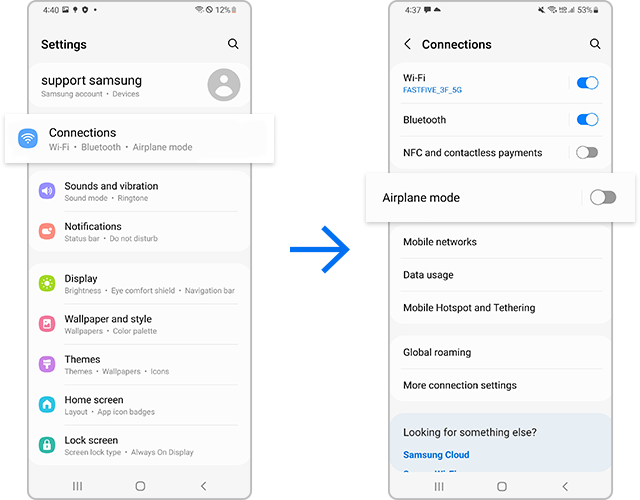
Turn off Airplane mode
- Open Settings on your Samsung Galaxy device.
- Tap Connections.
- If Airplane mode is enabled, turn it off and wait for the network signal to reappear.
Check if unknown or private numbers are blocked
If calls keep disconnecting or your device loses network signal frequently, resetting your network settings may help. Note that this will erase saved Wi-Fi networks, Bluetooth connections, and mobile network configurations.
- Open Settings on your Samsung Galaxy device.
- Tap General management.
- Select Reset settings.
- Tap Reset network settings.
- Confirm the reset when prompted.
Additional things to check
If the issue persists after following the above steps, consider these additional checks:
- Ensure your SIM card is properly inserted and undamaged.
- Check for carrier service outages in your area.
- Update your device software to the latest version.
- Restart your device to refresh network connections.
Supported Samsung Galaxy devices
These troubleshooting steps apply to most Samsung Galaxy devices, including Galaxy S24, Galaxy S25, Galaxy S26, Galaxy Z Fold, Galaxy Z Flip, and Galaxy A series models.
Related Samsung support topics



Thank you for your feedback!
Please answer all questions.