What are useful audio settings on my Samsung Galaxy phone and how do I use them
Samsung Galaxy phones offer powerful audio customization options to enhance your listening experience. From separating app sounds to enabling immersive Dolby Atmos effects, these settings let you tailor audio output for different scenarios. Whether you're watching movies, playing games, or listening to music, optimizing your phone's audio settings can significantly improve sound quality.
1. How to Use Separate App Sound
This feature allows individual apps to play audio through different devices, such as sending music to Bluetooth headphones while keeping notifications on your phone's speakers.
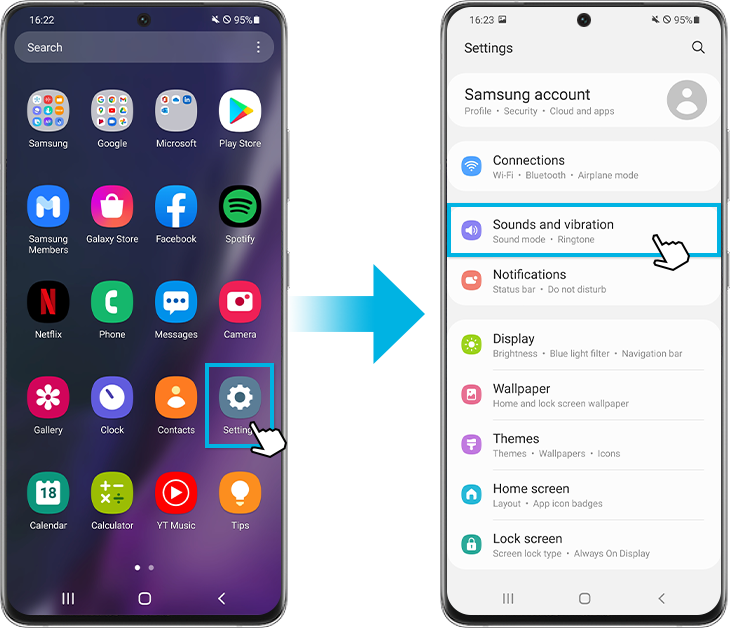
- Open the Settings app on your Samsung Galaxy device.
- Select Sounds and vibration.
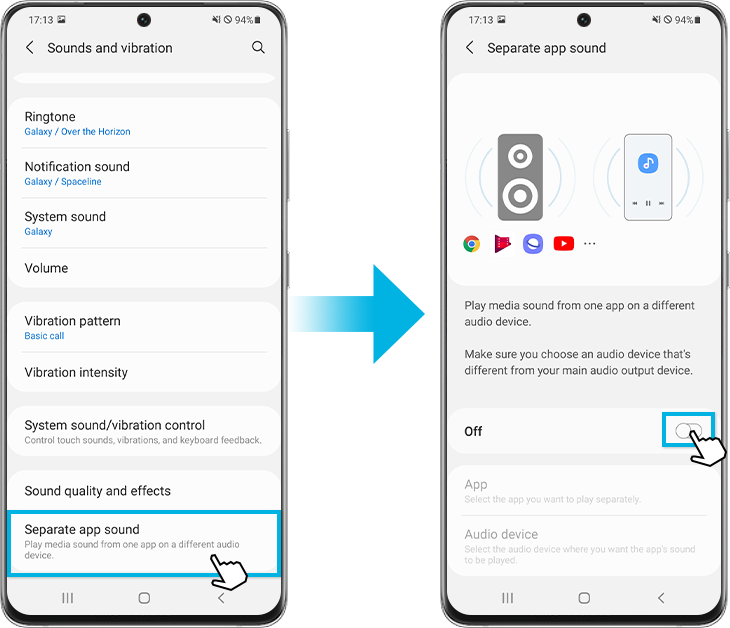
- Tap on Separate app sound.
- Turn on the switch to enable the feature.
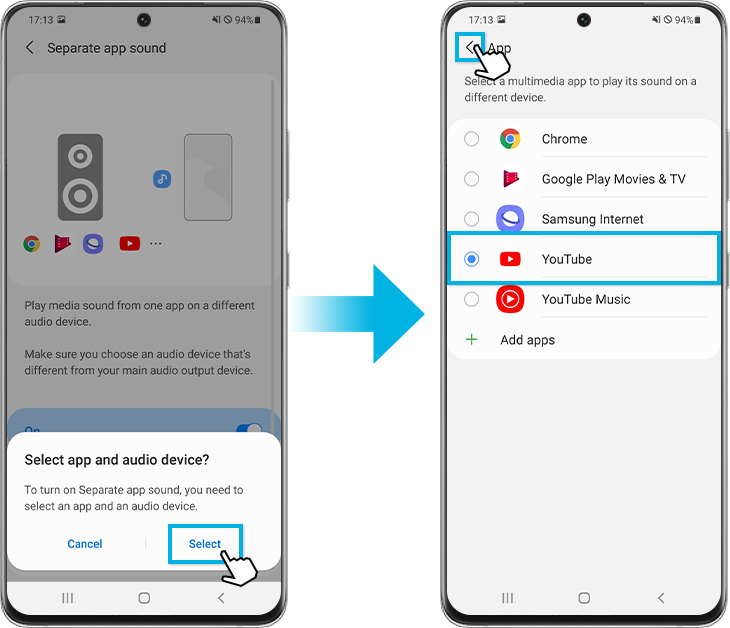
- Tap Select to choose the multimedia app you want to assign to a different audio device.
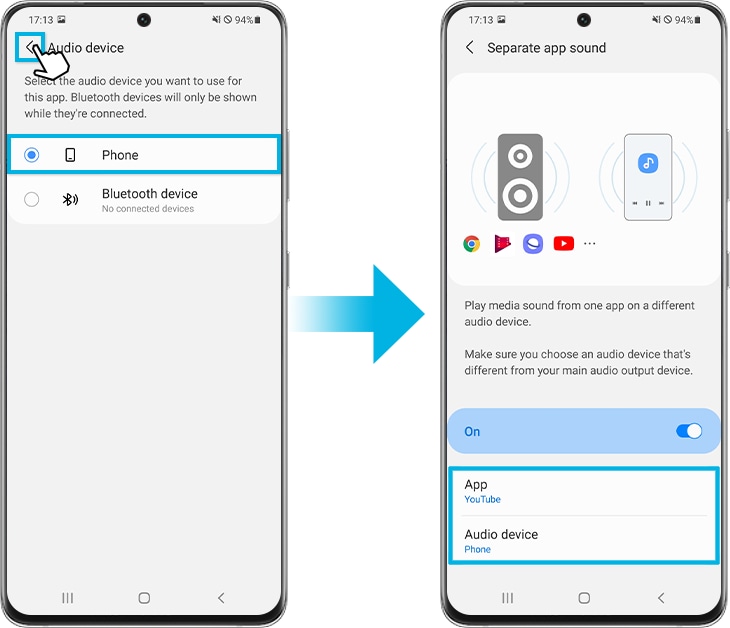
- Choose the audio device for this app. Note that Bluetooth devices will only appear when connected.
- This setting is particularly useful when using multiple audio devices simultaneously.
2. How to Enable Dolby Atmos
Dolby Atmos enhances audio immersion by delivering surround sound effects optimized for movies, music, and gaming.
- Go to Settings > Sounds and vibration > Sound quality and effects.
- Select Dolby Atmos and toggle it on.
- Choose your preferred audio mode based on content type (e.g., movies, music, voice).
- Dolby Atmos for gaming provides spatial audio cues that enhance gameplay immersion.
3. How to Adjust the Equalizer
Customize your audio experience by selecting an equalizer preset tailored to your preferred music genre.
- Navigate to Settings > Sounds and vibration > Sound quality and effects > Equalizer.
- Select a preset (e.g., Pop, Rock, Classical) or manually adjust frequencies.
4. How to Use Dual Audio
Play media on two connected Bluetooth devices simultaneously for shared listening experiences.
- Swipe down from the top of your screen to open the Quick Panel.
- Tap Media to view connected devices.
- Check the boxes next to the devices you want to use together.
- Dual audio is ideal for sharing music or movies with friends.
5. Additional Things to Check
- Ensure your Samsung Galaxy device is running the latest software version for optimal feature availability.
- Some audio features may vary by device model due to hardware limitations.
Supported Samsung Galaxy Devices
Audio customization features like Separate app sound, Dolby Atmos, and Dual audio are available on most recent Samsung Galaxy devices, including the Galaxy S24, Galaxy S25, Galaxy Z Fold series, Galaxy Z Flip series, and Galaxy A series. Always check your device settings for feature availability.
Related Samsung Support Topics

Thank you for your feedback!
Please answer all questions.