Why is the proximity sensor not working on my Samsung phone
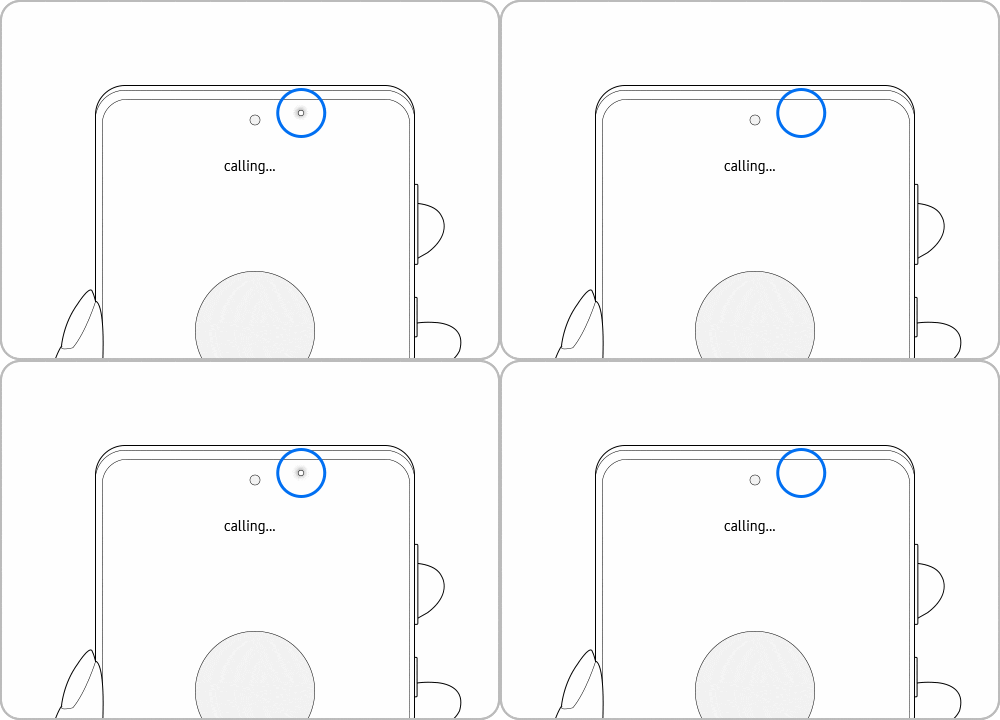
Why is the proximity sensor not working on my Samsung Galaxy phone?
If your Samsung Galaxy phone's screen doesn't turn off during calls, the proximity sensor may be blocked, dirty, or affected by settings. This guide explains how to troubleshoot and resolve the issue effectively.
1. Why does the proximity sensor fail on Samsung phones?
The proximity sensor detects when your face is near the phone during calls and automatically turns off the screen to prevent accidental touches. Common causes of failure include:
- Dirty or obstructed sensor area
- Conflicting display settings like "Double tap to turn on screen"
- Interference from screen protectors, cases, or hair
- Software glitches or low battery conditions
2. How to fix the proximity sensor on Samsung Galaxy devices
- Turn off "Double tap to turn on screen"
If enabled, this feature can interfere with the proximity sensor.
- Open Settings
- Go to Advanced Features > Motions and gestures
- Disable "Double tap to turn on screen"
- Clean the proximity sensor
Use a soft, lint-free cloth to gently clean the area around the sensor, located at the top of the phone.
- Note: Static electricity from hair or accessories like screen protectors can block the sensor.
- Remove accessories
- Take off any screen protector or case
- Test the sensor without accessories to check if it works properly
- Restart your phone
A simple restart can resolve temporary software glitches.
- Swipe down from the top of the screen
- Tap the Power icon
- Select Restart
- Diagnose with Samsung Members App
Use Samsung's built-in diagnostic tool to check the proximity sensor.
- Download the Samsung Members App from the Galaxy Store
- Open the app and tap Get Help
- Select Device Care > Diagnostic
- Run the test for the proximity sensor
3. Additional things to check
- Speakerphone or Bluetooth usage: The proximity sensor is disabled during calls made via speakerphone or Bluetooth earphones. The screen remains active in these cases.
- Battery status: Low battery conditions can affect sensor performance.
- Software updates: Ensure your device is running the latest software version. Updates often include bug fixes for hardware-related issues.
4. Supported Samsung Galaxy devices
This guide applies to most Samsung Galaxy devices, including the Galaxy S24, Galaxy S25, Galaxy S26, Galaxy Z Fold, Galaxy Z Flip, and Galaxy A series. For model-specific details, refer to your device's user manual.
5. Related Samsung support topics





Thank you for your feedback!
Please answer all questions.