How to use the TalkBack feature
How to Enable and Use TalkBack on Samsung Galaxy Devices
The TalkBack feature on Samsung Galaxy devices provides voice feedback to assist users with visual impairments in navigating their phones or tablets without looking at the screen. This guide covers how to enable, configure, and troubleshoot TalkBack, ensuring a seamless experience for users of all abilities.
1. What Is TalkBack?
TalkBack is an accessibility feature designed to help users with visual impairments interact with their Samsung Galaxy devices. It provides spoken feedback and navigation assistance, allowing users to operate their devices without relying on the display. The feature may also be referred to as Voice Assistant or Screen Reader, depending on the software version.
2. Supported Samsung Galaxy Devices
TalkBack is available on most Samsung Galaxy devices, including the Galaxy S24, Galaxy S25, Galaxy S26, Galaxy Z Fold, Galaxy Z Flip, and Galaxy A series. Ensure your device is running the latest software version for optimal functionality.
3. How to Enable or Disable TalkBack
Follow these steps to activate or deactivate the TalkBack feature on your Samsung Galaxy device:
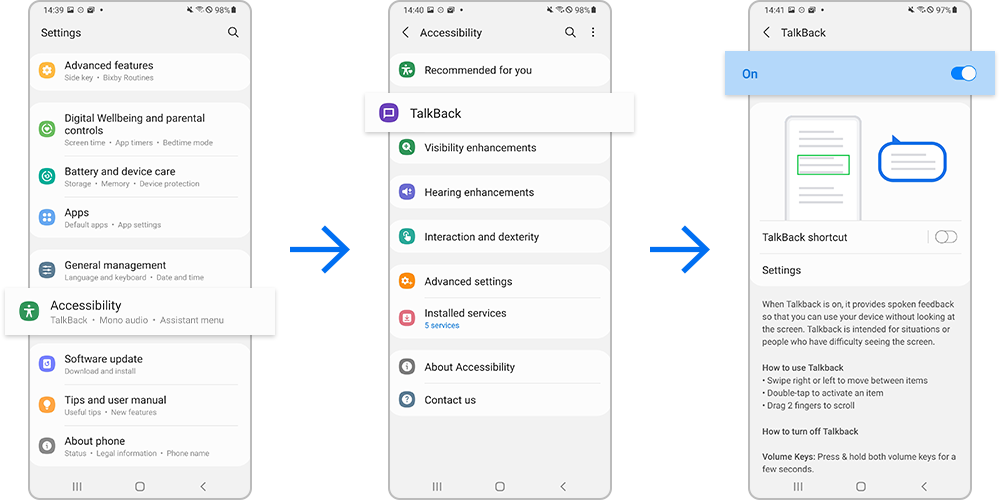
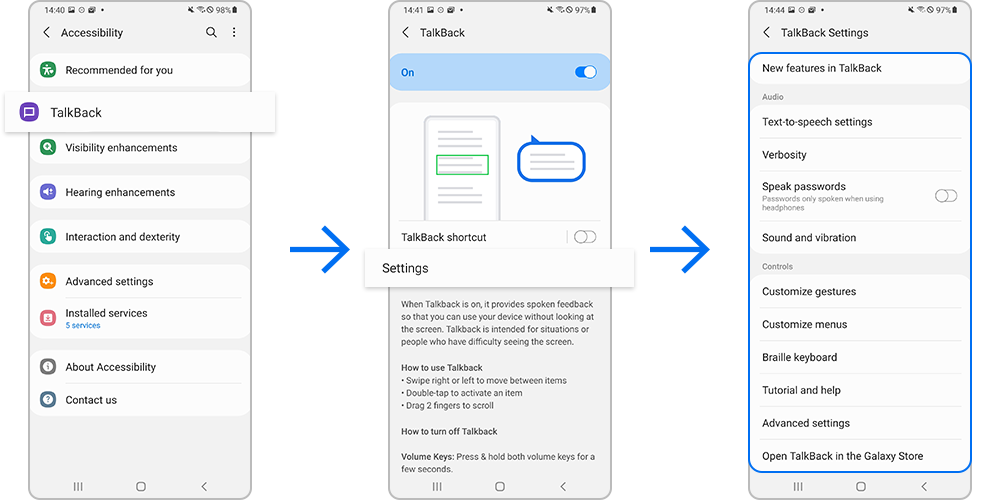
- Open the Settings app on your device.
- Select Accessibility from the menu.
- Tap on TalkBack (or Voice Assistant/Screen Reader, depending on your software version).
- Toggle the switch to enable or disable TalkBack.
To deactivate TalkBack, simply tap the switch again and double-tap anywhere on the screen.
- Note: Some features may not be available while TalkBack is active.
4. How to Use TalkBack
Once TalkBack is enabled, your device will provide voice feedback and guide you through a tutorial. Here's how to navigate and interact with your device using TalkBack:
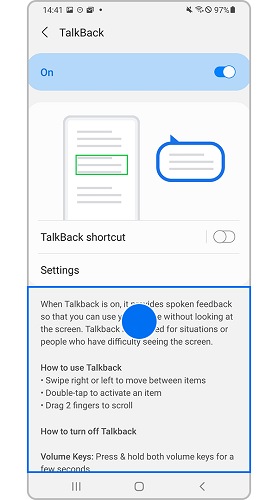
- Swipe right or left to move between items on the screen.
- Tap once to hear the selected item read aloud, and double-tap to activate it.
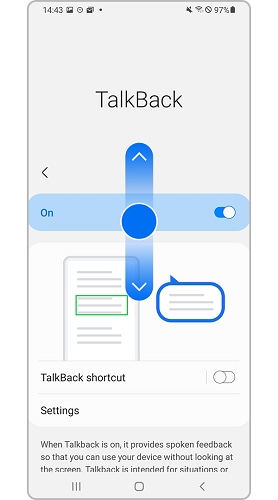
- Use two fingers to drag and scroll through content.
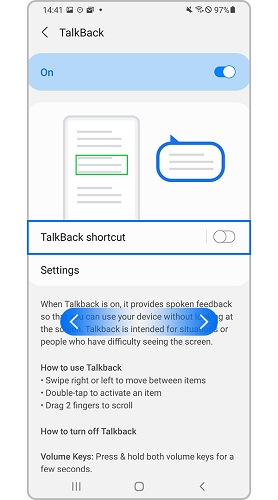
You can also enable a TalkBack shortcut by pressing the volume up and down keys simultaneously to toggle the feature on or off.
5. Configuring TalkBack Settings
Customize TalkBack to suit your preferences by adjusting its settings:
- Go to Settings > Accessibility > TalkBack.
- Tap on Settings to access customization options.
- Adjust the following settings as needed:
- New Features: Check for updates and changes to TalkBack.
- Text-to-Speech: Modify language, speed, and other text-to-speech settings.
- Verbosity: Control the level of detail in voice feedback.
- Speak Passwords: Choose whether passwords are read aloud, especially when using earphones.
- Sound and Vibration: Adjust sound and vibration feedback for TalkBack.
- Customize Gestures: Learn and modify finger gestures for controlling the screen.
- Braille Keyboard: Use a 6-dot braille keyboard for input.
- Tutorial and Help: Access guides and tutorials for using TalkBack.
- Advanced Settings: Configure additional TalkBack options.
6. Additional Things to Check
If TalkBack is not functioning as expected, consider the following:
- Ensure your device's software and related apps are up to date.
- Restart your device to resolve any temporary glitches.
- Check for compatibility issues with third-party apps.
Related Samsung Support Topics

Thank you for your feedback!
Please answer all questions.