How to perform a factory reset on your Galaxy phone

How to factory reset a Samsung Galaxy phone
To factory reset your Samsung Galaxy phone, you'll need to erase all personal data, apps, and settings. This process returns your device to its original state, making it ideal for troubleshooting, repairs, or transferring ownership. Follow these steps carefully to avoid data loss.
1. Why perform a factory reset?
Factory resets are commonly used in the following scenarios:
- Preparing your phone for repair or warranty service
- Selling, gifting, or recycling your device
- Resolving software glitches, slow performance, or boot loops
- Removing persistent app or system errors
2. Supported Samsung Galaxy devices
This guide applies to most Samsung Galaxy devices, including:
- Galaxy S24, S25, S26 series
- Galaxy Z Fold and Z Flip series
- Galaxy A series (A15, A25, etc.)
- Older Galaxy models running Android 10 or later
3. How to factory reset your Samsung Galaxy phone
- Back up your data: Before proceeding, ensure all important files, photos, and settings are saved to Samsung Cloud, Google Drive, or another storage location.
- Decrypt your microSD card (if applicable): If your phone has an encrypted microSD card, go to Settings > Biometrics and security > Decrypt SD card and follow the prompts.
- Open Settings: Swipe down from the top of your screen, tap the gear icon, or open the Settings app from your home screen.
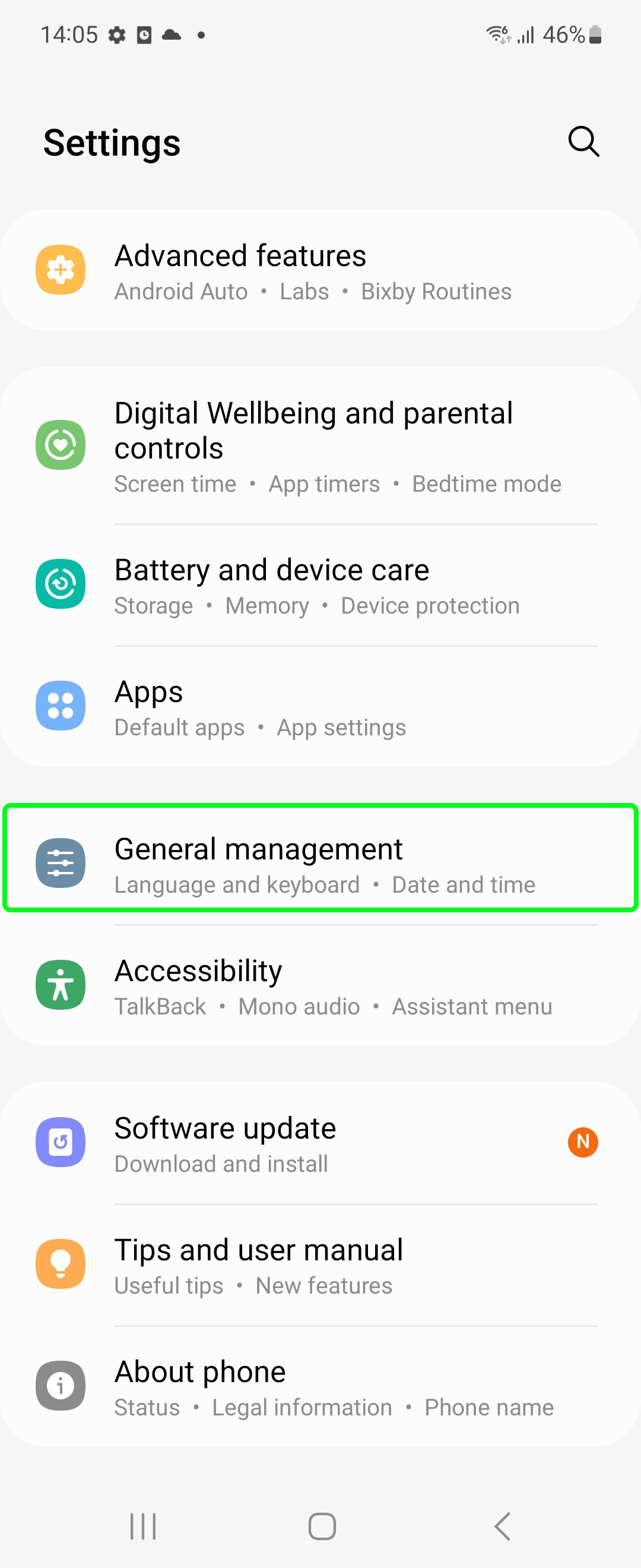
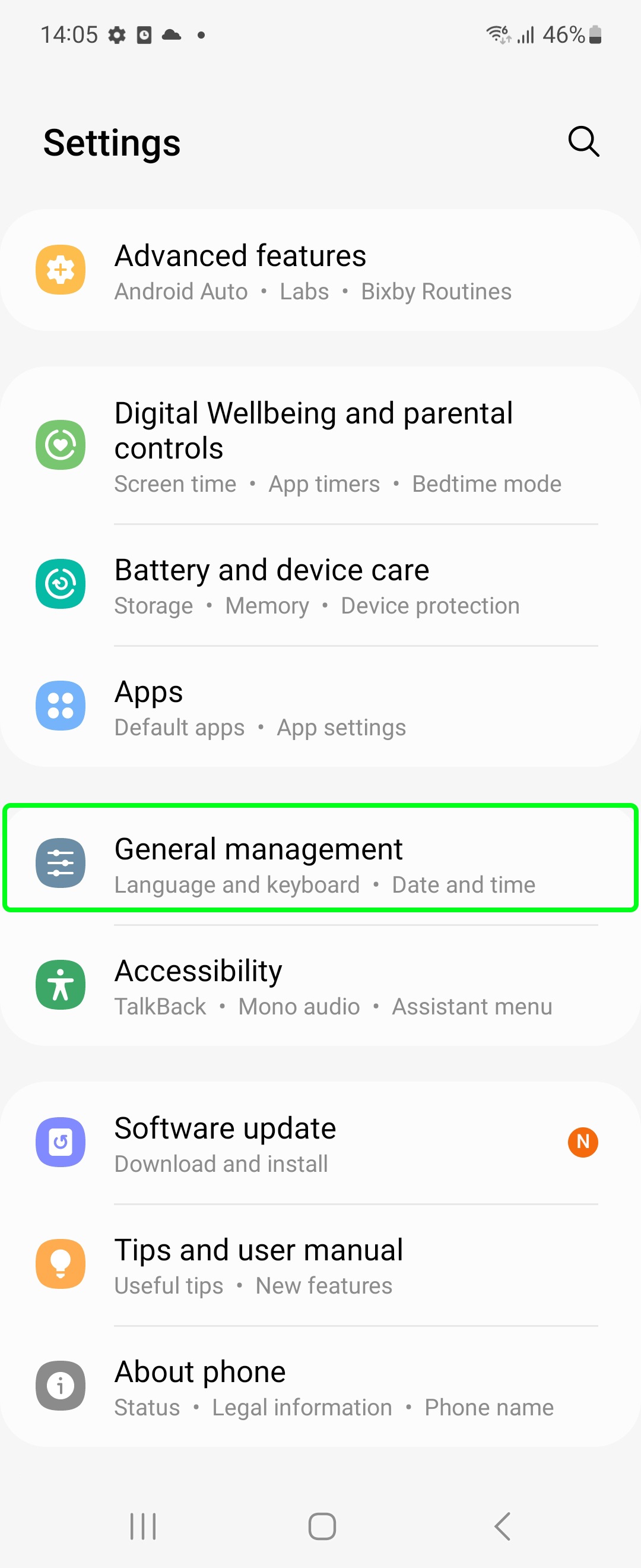
- Navigate to General management: Scroll down and select General management.
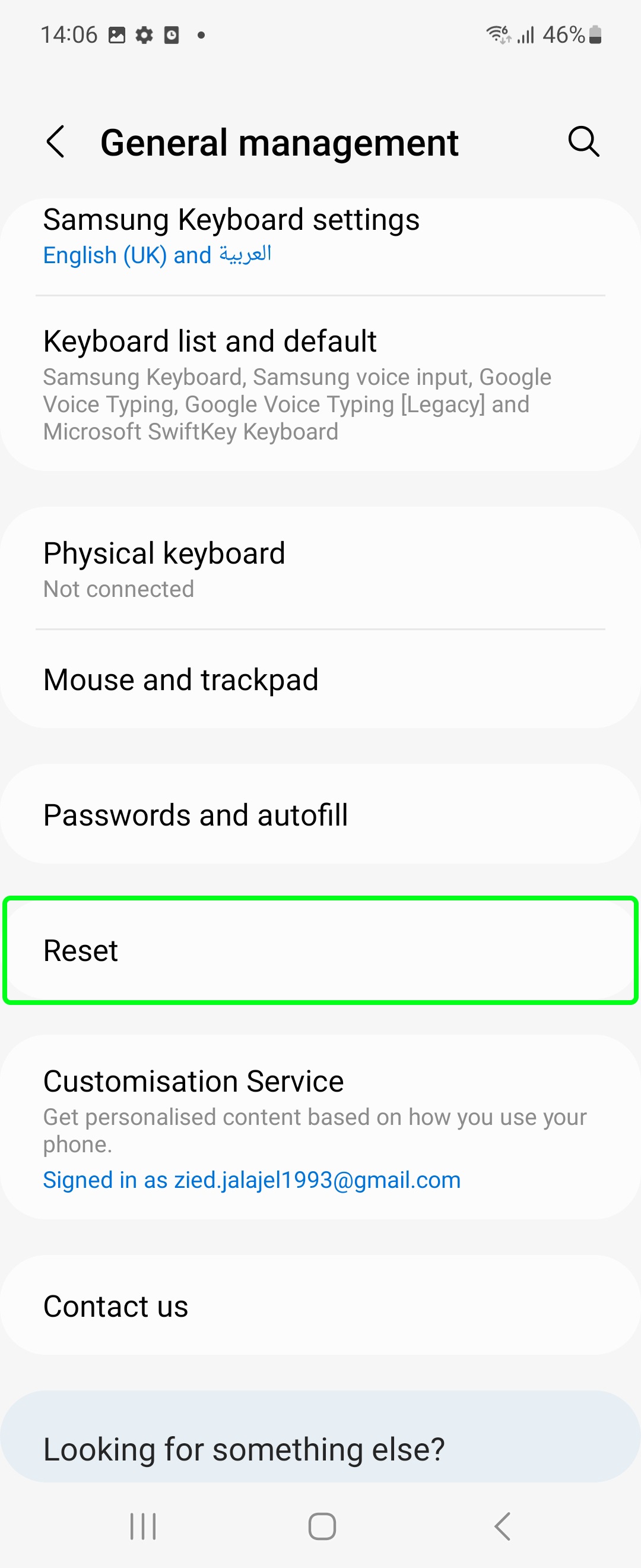
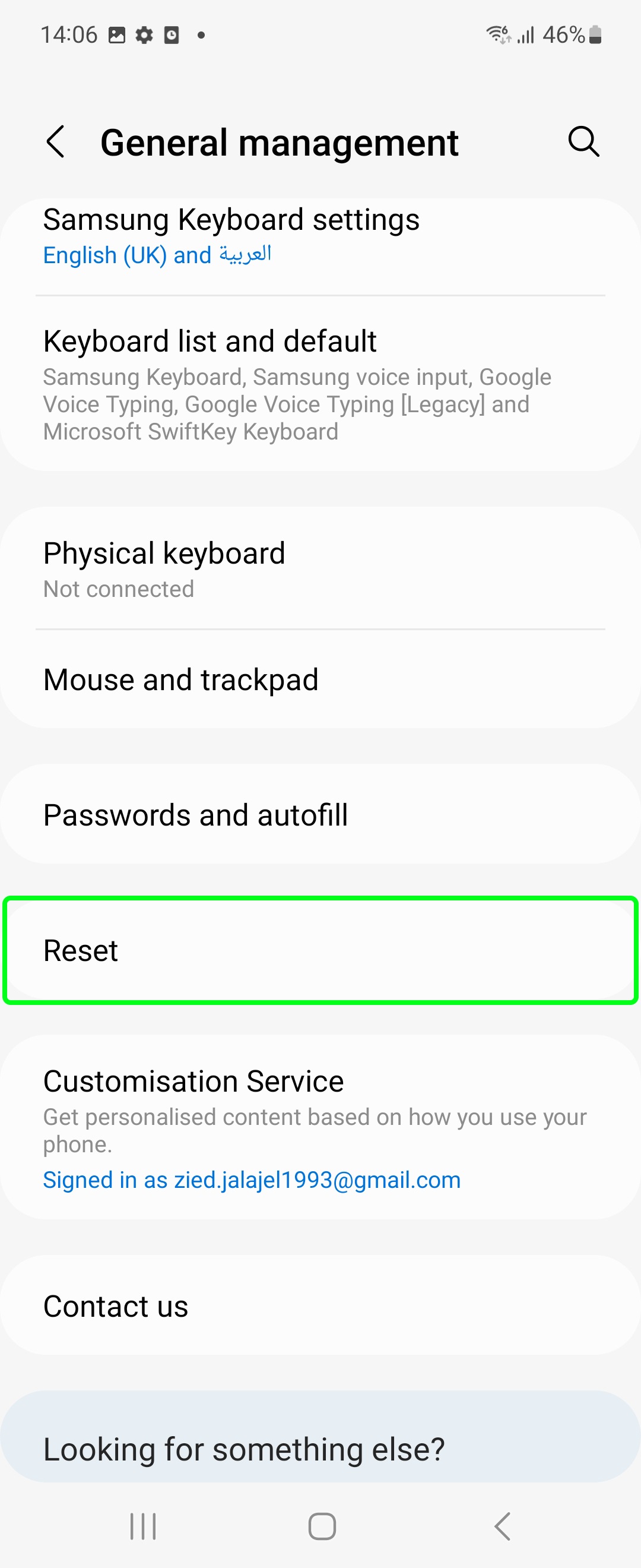
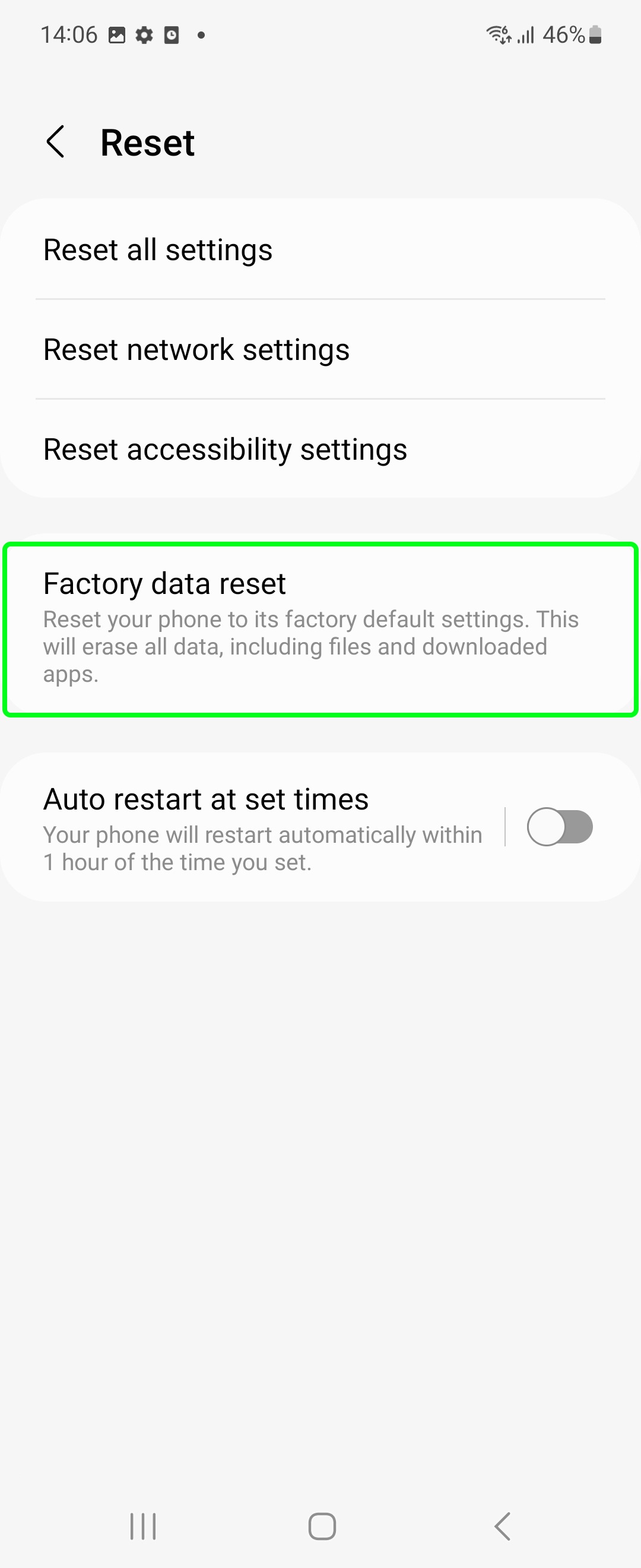
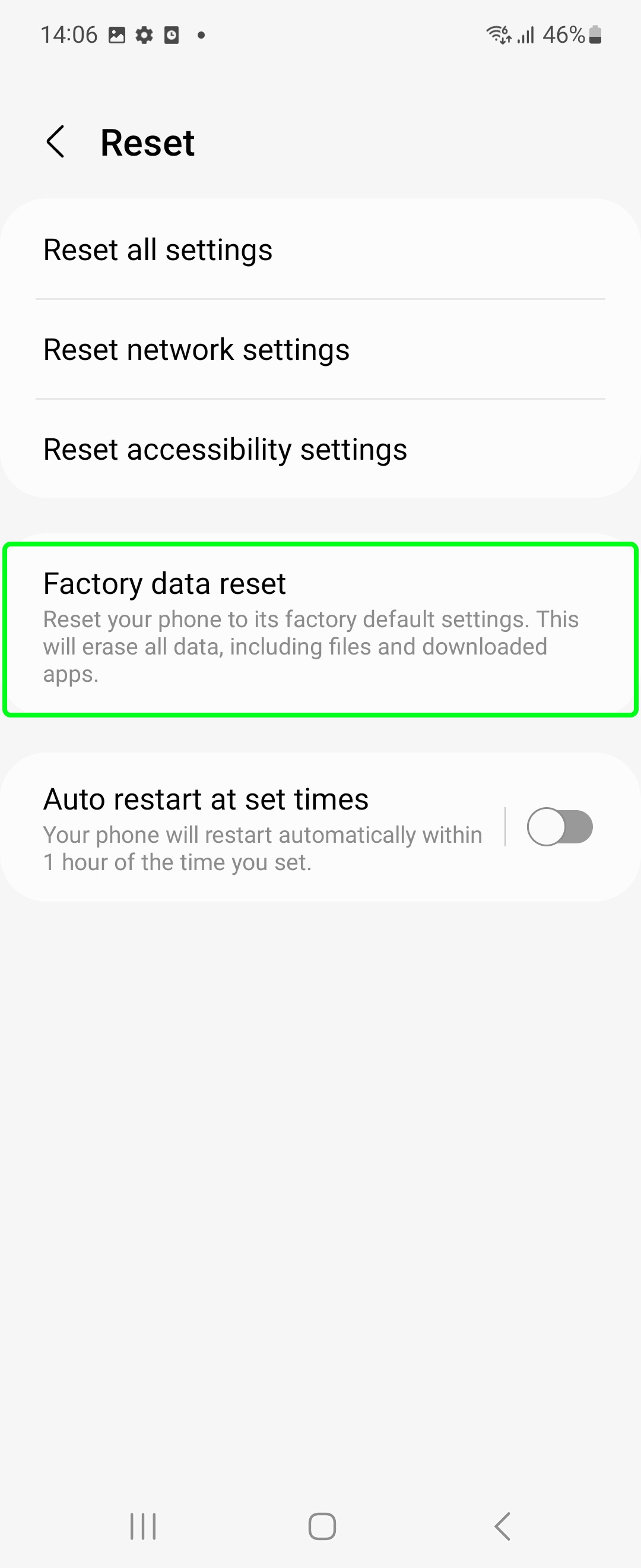
- Select Reset: Tap Reset, then choose Factory data reset.
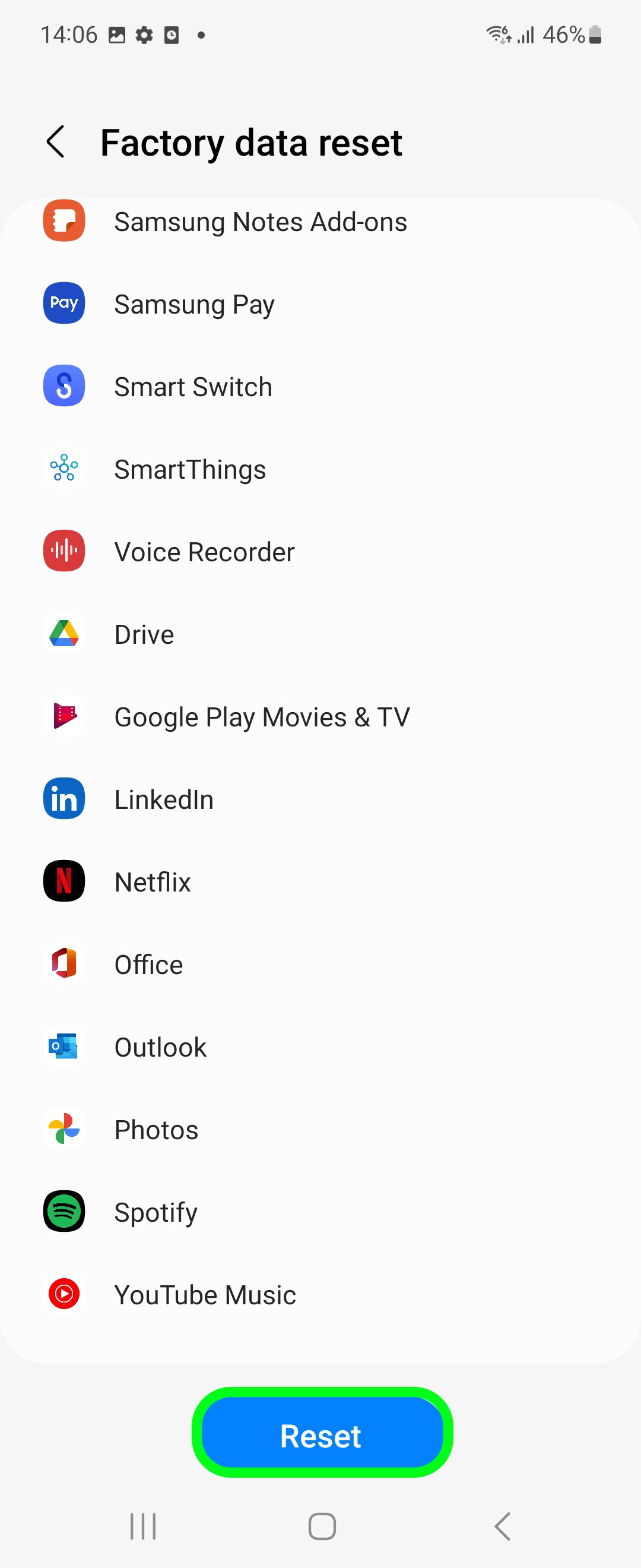
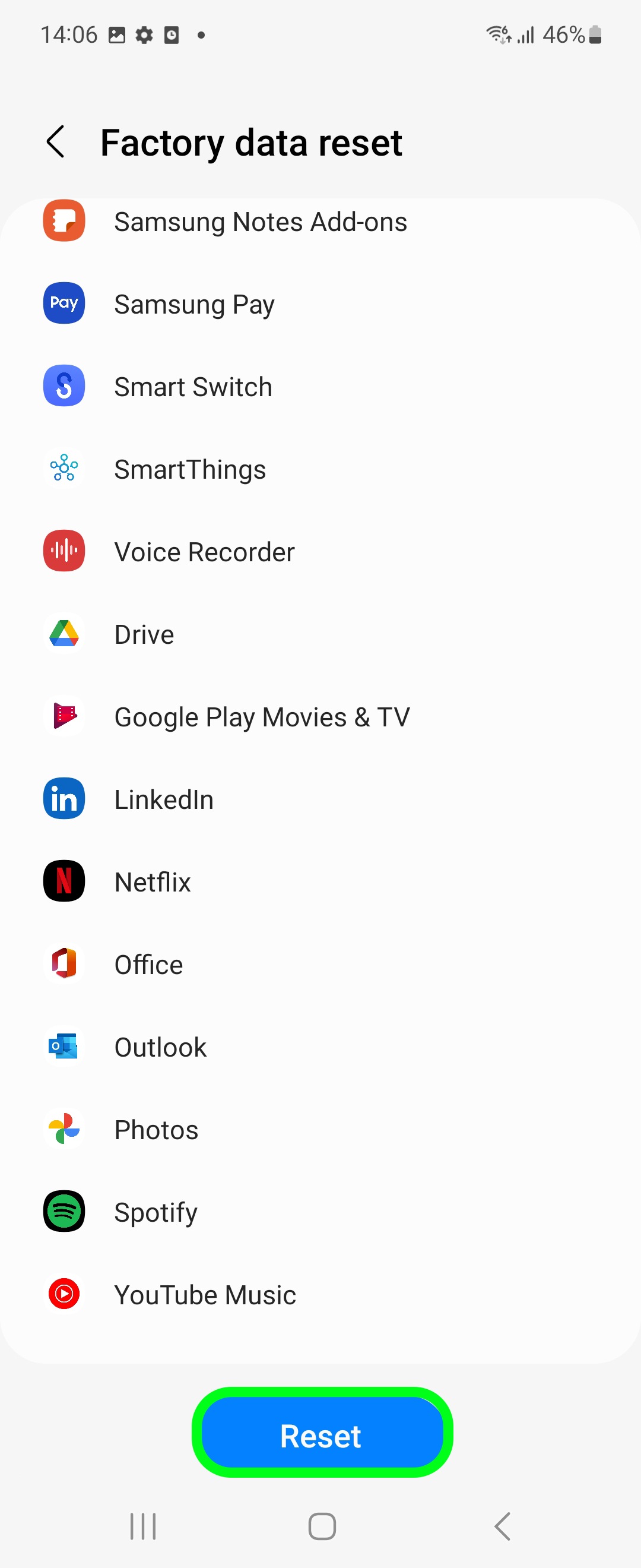
- Confirm reset: Review the warning message, then tap Delete all to confirm. You may need to enter your Samsung account password if linked to the device.
- Wait for completion: Your phone will restart and begin the reset process. Once finished, it will return to the initial setup screen.
4. Additional things to check
- Ensure your phone is charged to at least 50% to prevent interruptions during the reset.
- Remove any connected accessories (cases, chargers) that might interfere with the process.
- Verify that your Samsung account is properly signed out after the reset to prevent lockout issues.
5. When factory resets may fail
- Insufficient battery power: Always charge your device before starting.
- Software corruption: In rare cases, a damaged OS may require a recovery mode reset instead.
- Account lock: If Find My Mobile is enabled, you'll need to sign in to your Samsung account to proceed.
6. Related Samsung support topics


Thank you for your feedback!
Please answer all questions.