How to make calls and send messages on other Galaxy devices
How to Make Calls and Send Messages on Other Samsung Galaxy Devices
To make and receive calls or send messages on your Samsung Galaxy tablet, you can use the Call & Text on Other Devices feature. This allows seamless synchronization of calls and messages across your Samsung devices using the same Samsung account. Ensure your devices are updated to the latest software version before proceeding.
1. How to Enable Call & Text on Other Devices
Follow these steps to set up the Call & Text on Other Devices feature:
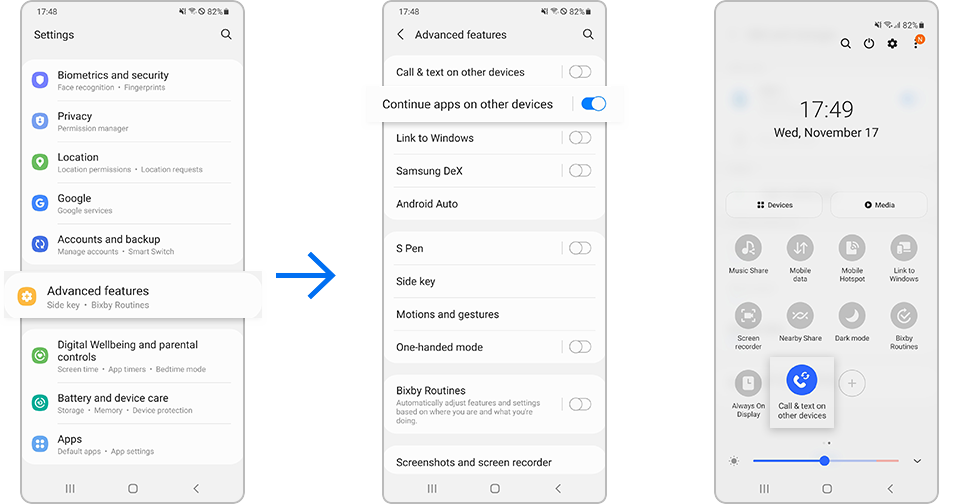
- Open the Settings app on your Samsung Galaxy phone or tablet.
- Go to Advanced features.
- Tap on Call & Text on Other Devices and toggle the switch to turn it on.
You can also enable this feature from the Quick Panel for faster access.
2. Supported Samsung Galaxy Devices
The Call & Text on Other Devices feature is compatible with the following Samsung Galaxy devices:
- Galaxy S24, S25, S26 series
- Galaxy Z Fold and Galaxy Z Flip series
- Galaxy A series (select models)
Ensure both your phone and tablet are signed into the same Samsung account for synchronization.
3. Why the Feature May Not Work
- Devices are not signed into the same Samsung account.
- Software or related apps are outdated.
- The phone and tablet are in different countries or regions.
- Carrier restrictions apply to certain models.
4. How to Use Your Tablet During a Call
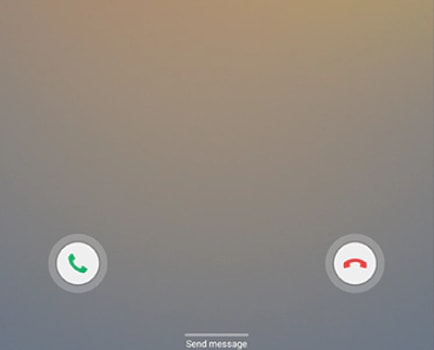
When a call comes in, if your tablet is closer than your phone, you can answer it directly on the tablet:
- Swipe the green Answer icon to accept the call.
- Swipe the red Hang up icon to reject the call.
- Swipe up from the bottom to send a message or call back later.
If you prefer to continue the call on your phone, tap Pull Call on your phone to transfer the call.
5. Additional Things to Check
Ensure the following for smooth functionality:
- Both devices have stable internet connectivity (Wi-Fi or mobile data).
- The Samsung Messages and Phone apps are updated to the latest version.
- The Call & Text on Other Devices feature is enabled on both devices.
6. Related Samsung Support Topics

Thank you for your feedback!
Please answer all questions.