How to use Samsung keyboard features on your Galaxy phone
How to Find Useful Features on the Samsung Keyboard on Your Galaxy Phone
The Samsung keyboard on your Galaxy phone offers a variety of useful features designed to enhance your typing experience. From quick gestures for undoing and redoing text to built-in translation, voice input, and secure access to Samsung Pass, these tools make everyday tasks faster and more efficient. Here's how to access and use these features effectively.
1. Undo and Redo Using the Samsung Keyboard
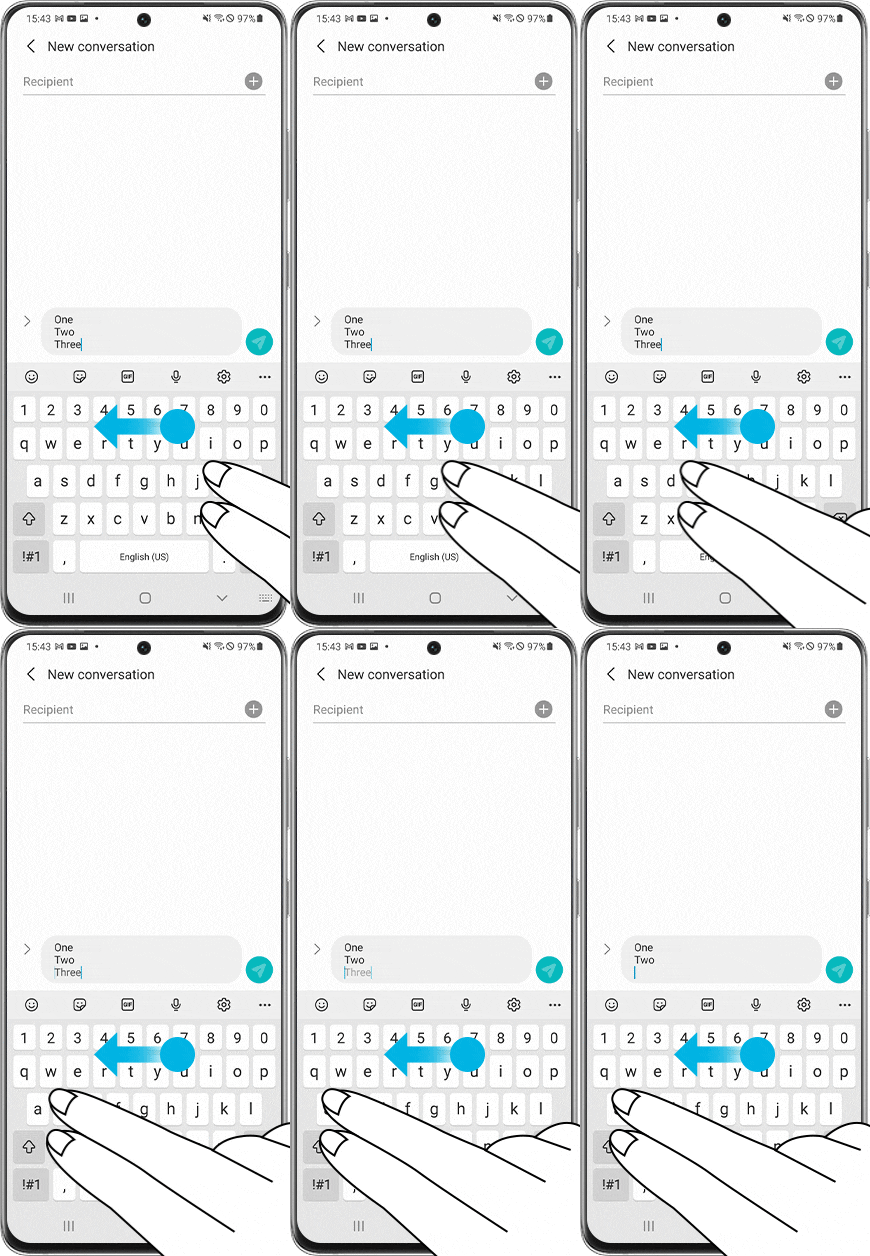
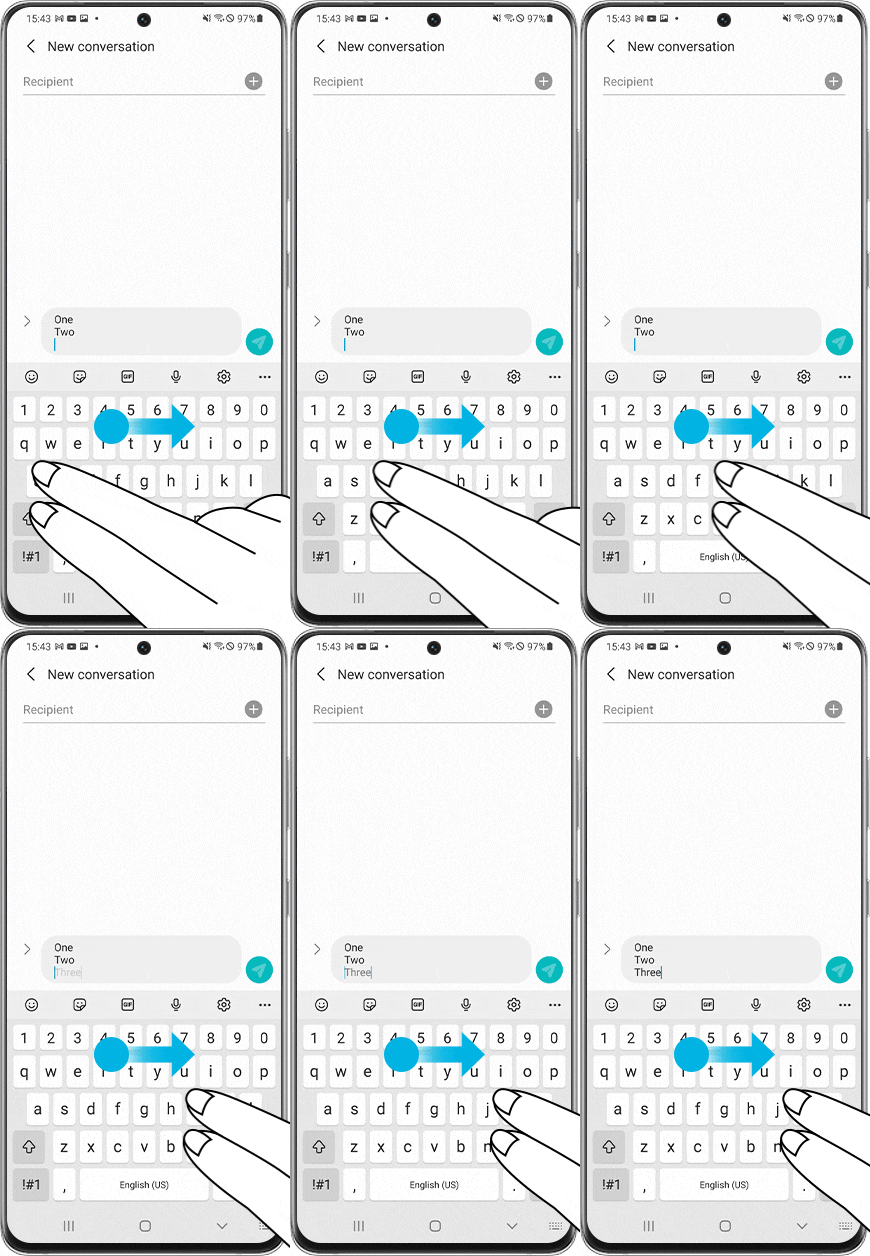
Instead of manually deleting text, you can quickly undo or redo actions with simple gestures:
- Swipe left on the keyboard with two fingers to undo your last action.
- Swipe right on the keyboard with two fingers to redo the undone action.
- This feature works across most text fields, including messages, emails, and notes.
2. Quickly Change the Keyboard Input Type
You can switch between different keyboard layouts without leaving your current app:
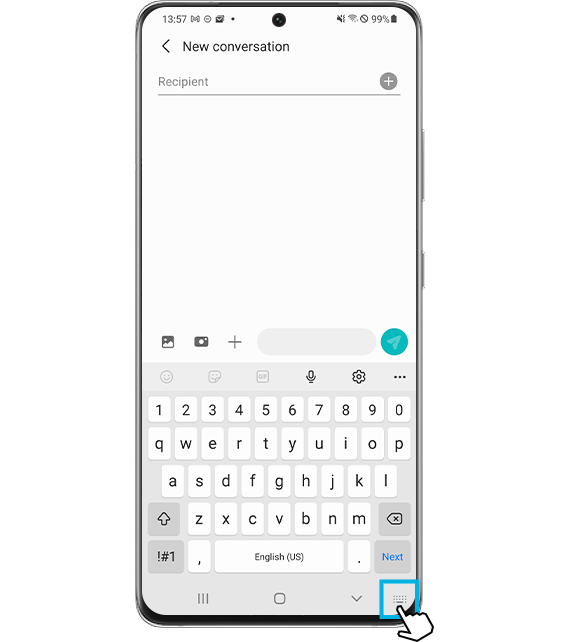
- Tap the globe or language icon on the keyboard to cycle through input types (e.g., QWERTY, numeric, or handwriting).
- For advanced settings, tap the gear icon to access keyboard preferences.
- This is especially useful when switching between English and Korean or other languages.
3. Use the Samsung Keyboard Translator Function
The Samsung keyboard includes a built-in translation feature for multilingual communication:
- Tap the translation icon (usually a speech bubble with a globe) on the keyboard.
- Select the source and target languages, then type your message.
- Tap the translated text to insert it into your conversation.
- Translation accuracy depends on the selected language pair and software version.
4. Enable Voice Input on the Samsung Keyboard
Use voice-to-text functionality to type hands-free:
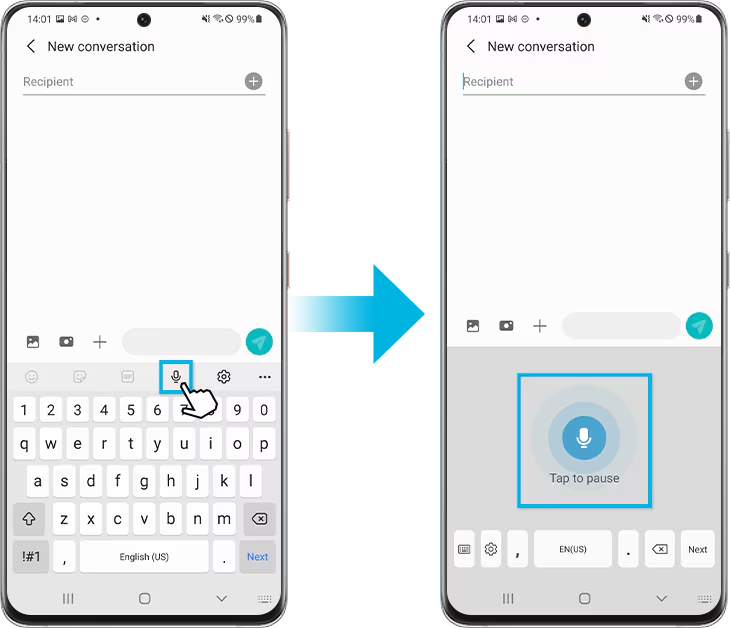
- Tap the microphone icon on the keyboard.
- Speak clearly into your device's microphone.
- Tap the microphone icon again to stop recording and convert your speech to text.
- Ensure your device has a stable internet connection for optimal performance.
5. Access Samsung Pass from the Keyboard
Securely retrieve saved information like passwords, credit card numbers, and addresses:
- Tap the three horizontal dots (More options) in the top-right corner of the keyboard.
- Select the Samsung Pass icon.
- Verify your identity (e.g., fingerprint or PIN).
- Choose the saved information you'd like to insert into the text field.
- Samsung Pass supports biometric authentication for added security.
6. Additional Things to Check
- Ensure your device's software and keyboard app are up to date for the latest features and improvements.
- Some features may vary depending on your device model and region.
7. Supported Samsung Galaxy Devices
These features are available on most Samsung Galaxy devices, including the Galaxy S24, Galaxy S25, Galaxy S26, Galaxy Z Fold, Galaxy Z Flip, and Galaxy A series. Always check your device's software version for compatibility.
8. Why These Features Are Helpful
- Undo/redo gestures save time during editing.
- Translation and voice input improve accessibility for multilingual users.
- Samsung Pass integration enhances security and convenience for autofill tasks.
Related Samsung Support Topics




Thank you for your feedback!
Please answer all questions.