How to enable or disable Mobile data on your Galaxy phone
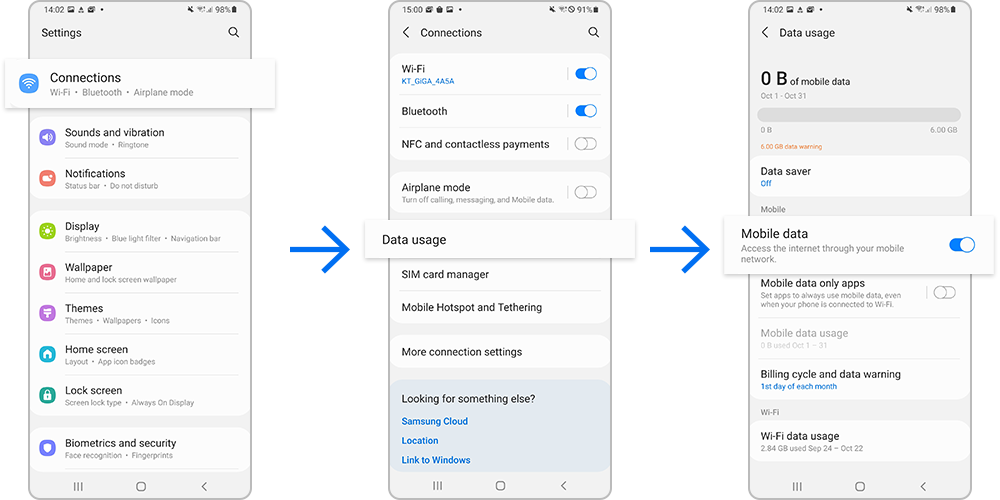
How to Turn Mobile Data On or Off on Samsung Galaxy Phones
Mobile data allows your Samsung Galaxy device to connect to the internet through your mobile network provider. If you're experiencing connectivity issues or want to manage data usage, follow these steps to enable or disable mobile data effectively.
1. Check Your Device Software Version
Before adjusting mobile data settings, ensure your device is running the latest software version to avoid compatibility issues:
- Open Settings and navigate to Software Update.
- Select Download and Install to check for updates.
- Follow the on-screen prompts to complete the update process.
2. Enable or Disable Mobile Data
Mobile data is typically enabled by default if you have an active data plan and a SIM card inserted. Here's how to toggle it:
- Open Settings and go to Connections.
- Select Data Usage.
- Toggle the Mobile Data switch to enable or disable it.
Alternatively, use the Quick Panel:
- Swipe down from the top of the screen to open the Quick Panel.
- Tap the Mobile Data icon to toggle it on or off.
Note: Mobile data usage may incur additional charges. Contact your network provider for data plan details.
3. Enable Data Saver to Manage Data Usage
Data Saver reduces background data usage by restricting apps from consuming data when Data Saver is enabled. Here's how to activate it:
- Go to Settings and select Connections.
- Tap Data Saver and enable it.
- Choose specific apps allowed to use data while Data Saver is active by selecting Allow App While Data Saver On.
You can also configure app permissions individually:
- Navigate to Settings > Apps.
- Select the app you want to adjust.
- Go to Mobile Data and toggle Allow App While Data Saver On.
Note: Menu layouts may vary slightly depending on your device model and software version.
4. Additional Things to Check
- Ensure your SIM card is properly inserted and activated.
- Restart your device if mobile data fails to connect.
- Verify your network provider hasn't suspended your data service.
5. Supported Samsung Galaxy Devices
This guide applies to most Samsung Galaxy devices, including the Galaxy S24, Galaxy S25, Galaxy Z Fold, Galaxy Z Flip, and Galaxy A series models.
Related Samsung Support Topics


Thank you for your feedback!
Please answer all questions.