How to create or remove a Google account on your Galaxy phone

To create or remove a Google account on your Samsung Galaxy phone, follow the steps below. A Google account is essential for accessing Google services such as the Play Store, Gmail, and Google Photos. Ensure your device's software is updated before proceeding.
1. How to Create a Google Account on Your Samsung Galaxy Phone
Adding a Google account to your Samsung Galaxy phone allows you to access Google services like the Play Store, Gmail, and Google Photos. Follow these steps:
- Go to Settings on your device.
- Tap on Accounts and backup.
- Select Add account.
- Choose Google.
- Follow the on-screen instructions to sign in with an existing Google account or create a new one.
- Once signed in, your Google account will be linked to your device.
2. How to Remove a Google Account from Your Samsung Galaxy Phone
If you need to remove a Google account from your Samsung Galaxy phone, follow these steps:
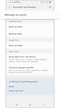
- Go to Settings on your device.
- Tap on Accounts and backup.
- Select the Google account you want to remove.
- Tap on Remove account.
- Confirm the removal when prompted.
- Note: If Google Device Protection is enabled, you may need to verify your identity before removing the account.
3. Supported Samsung Galaxy Devices
These steps apply to most Samsung Galaxy devices, including the Galaxy S24, Galaxy S25, Galaxy S26, Galaxy Z Fold, Galaxy Z Flip, and Galaxy A series. Ensure your device's software is up to date for optimal functionality.
4. Additional Things to Check
- Verify that your device has a stable internet connection before adding or removing a Google account.
- Ensure sufficient storage space on your device to avoid interruptions during the process.
5. Why the Issue Happens
- Software update issues or outdated apps can prevent Google account synchronization.
- Network connectivity problems may cause errors during account setup or removal.
Related Samsung Support Topics




Thank you for your feedback!
Please answer all questions.