How to clear the app cache and data on your Galaxy phone
How to Clear App Cache and Data on Samsung Galaxy Devices
Clearing app cache and data on your Samsung Galaxy phone can resolve performance issues, free up storage space, and fix app malfunctions. This guide covers both automatic optimization using Device Care and manual methods for individual apps.
1. Why Should You Clear App Cache and Data?
Over time, apps accumulate temporary files, logs, and cached data that can slow down your device or cause crashes. Clearing cache removes temporary files without affecting app settings, while clearing data resets the app to its default state, deleting all personal data, settings, and accounts.
- Improves device performance and responsiveness
- Frees up internal storage space
- Resolves app crashes, freezing, or slow loading
2. Supported Samsung Galaxy Devices
This guide applies to most Samsung Galaxy devices, including:
Galaxy S24, Galaxy S25, Galaxy S26, Galaxy Z Fold, Galaxy Z Flip, and Galaxy A series smartphones.
3. How to Update Your Device Before Clearing Cache
Before proceeding, ensure your device is running the latest software version to avoid compatibility issues:
- Open Settings.
- Go to Software update.
- Tap Download and install.
- Follow the on-screen instructions to complete the update.
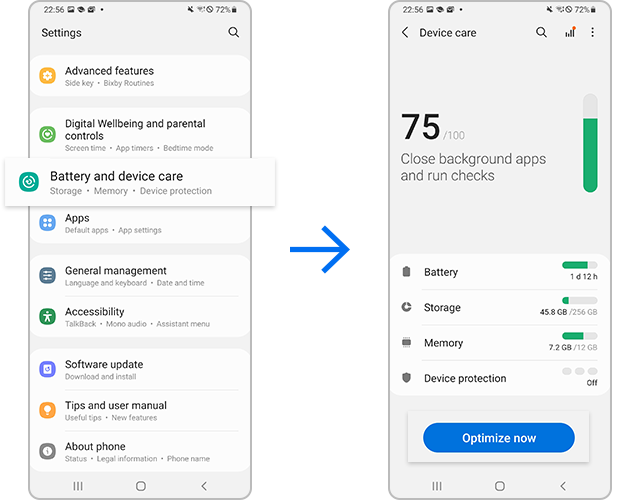
4. How to Clear App Cache Using Device Care
Device Care offers a quick way to clear cache across all apps simultaneously:
- Open Settings.
- Select Battery and device care.
- Tap Optimize now. The system will automatically close background apps, manage battery usage, and clear cached data.
To enable daily automatic optimization:
- In Device Care, tap More options.
- Select Automation.
- Enable Auto optimize daily.
5. How to Clear Cache for a Specific App
If a particular app is causing issues, you can clear its cache manually:
- Open Settings.
- Go to Apps or Application manager.
- Find and select the app you want to clear.
- Tap Storage.
- Select Clear cache.
6. How to Clear App Data
Clearing app data deletes all personal information, settings, and accounts associated with the app. Use this method only if the app is severely malfunctioning:
- Open Settings.
- Go to Apps or Application manager.
- Find and select the app.
- Tap Storage.
- Select Clear data or Clear storage.
- Confirm the action when prompted.
7. Additional Things to Check
If clearing cache and data doesn't resolve the issue, consider the following:
- Check for app updates in the Galaxy Store or Play Store.
- Restart your device to refresh system resources.
- Ensure your device has sufficient storage space (at least 10% free).
Related Samsung Support Topics

Thank you for your feedback!
Please answer all questions.