How to activate the Always On Display feature on your Galaxy phone

How to Turn On Always On Display on Samsung Galaxy Phones
The Always On Display feature allows you to view essential information like time, calendar, and notifications even when your Samsung Galaxy phone screen is off. This guide explains how to activate and customize the feature across supported Galaxy models.
1. Supported Samsung Galaxy Devices
Always On Display is available on most modern Samsung Galaxy smartphones, including:
Galaxy S24, Galaxy S25, Galaxy S26, Galaxy Z Fold, Galaxy Z Flip, and Galaxy A series devices.
2. Why Use Always On Display?
- Quickly check the time, date, or calendar without unlocking your phone.
- View notifications for messages, calls, or app alerts.
- Control music playback directly from the lock screen.
3. How to Activate Always On Display
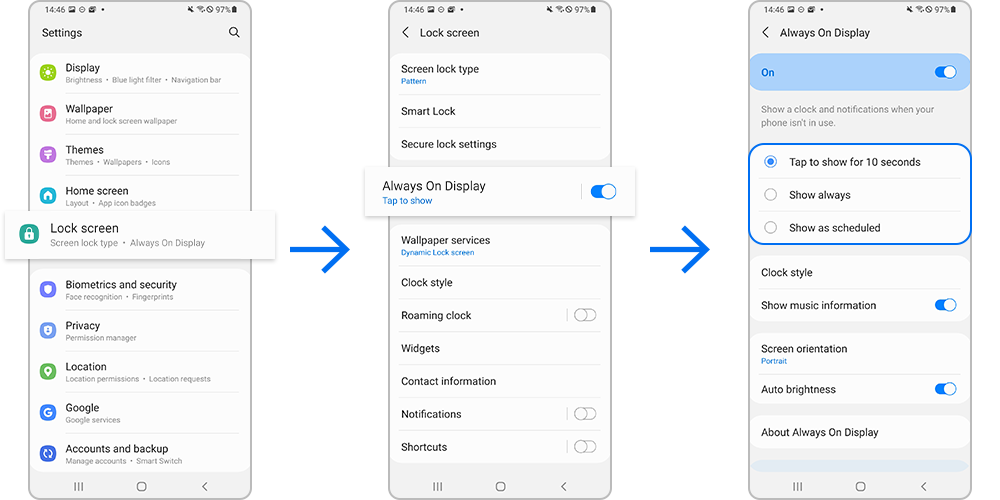
- Open the Settings app on your Samsung Galaxy device.
- Scroll down and tap on Lock screen.
- Select Always On Display from the menu.
- Toggle the switch at the top of the screen to enable the feature.
- Choose your preferred display mode:
- Tap to show: The display appears briefly when you tap the screen.
- Show always: The display remains on continuously while the phone is locked.
- Show as scheduled: Set specific times for the display to activate, such as during the day only.
4. Additional Things to Check
Ensure your device software is up to date for optimal performance:
- Go to Settings > Software update.
- Tap Download and install.
- Follow the on-screen instructions to complete the update.
Note: Always On Display may be disabled if Power saving mode is active. Check your power settings to ensure the feature is not restricted.
5. Managing Battery Usage
While Always On Display is designed to minimize battery consumption, continuous display modes may increase power usage. Adjust settings based on your daily usage patterns to balance convenience and battery life.
6. Viewing Notifications on Always On Display
When you receive a message, missed call, or app notification, an icon will appear on the display. Double-tap the icon to view the notification details. Note that you must unlock your phone to access the full content of the notification.
7. Turning Off Always On Display
To disable the feature, follow these steps:
- Open the Settings app.
- Navigate to Lock screen > Always On Display.
- Toggle the switch to turn off the feature.
Alternatively, you can quickly toggle the feature using the notifications panel:
- Swipe down from the top of the screen to open the notifications panel.
- Tap the Always On Display button to deactivate it.
- If the button is not visible, tap the Add (+) icon and drag the Always On Display button to the panel.
Related Samsung Support Topics

Thank you for your feedback!
Please answer all questions.