How to sign out and sign back in to your Samsung account on your TV
Signing out on your TV removes your Samsung account from the device. When you sign out, the account is deleted from the TV and smart features will no longer be available. This action deletes synced data from the TV, but you can sign back in later if needed. Follow these steps to sign out of your Samsung account on the TV.


Step 1. Go to Settings > All Settings > Samsung Account.


Step 2. Select your account and choose My Account.


Step 3. Select Sign Out.


Step 4. When prompted, select Yes.
You can also access account settings by selecting your account name from the left panel.


Step 1. Press left button on your remote and select your account name at the top left.


Step 2. Select the account you wish to sign out and select the edit button.
Step 3. Select Sign Out.
Step 4. When prompted, select Yes.
Note:
- After signing out, smart features such as Samsung services, apps, cloud features, and synced content linked to that account will no longer be available.
- Signing out does not cancel any active subscriptions.
You can sign back in to your account at any time without losing your data. Signing in also lets you manage your Samsung account, including updating your profile or setting a PIN. Follow these steps to sign in.
Step 1. Press the left button on your TV remote and go to Samsung Account > select +.
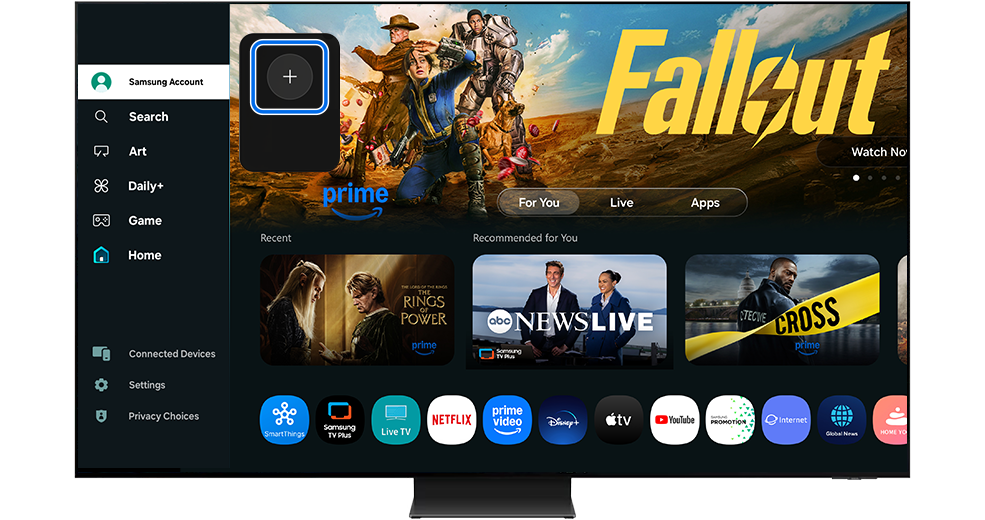
Step 2. Sign in by scanning the QR code, or by entering your email address, or using a web browser.
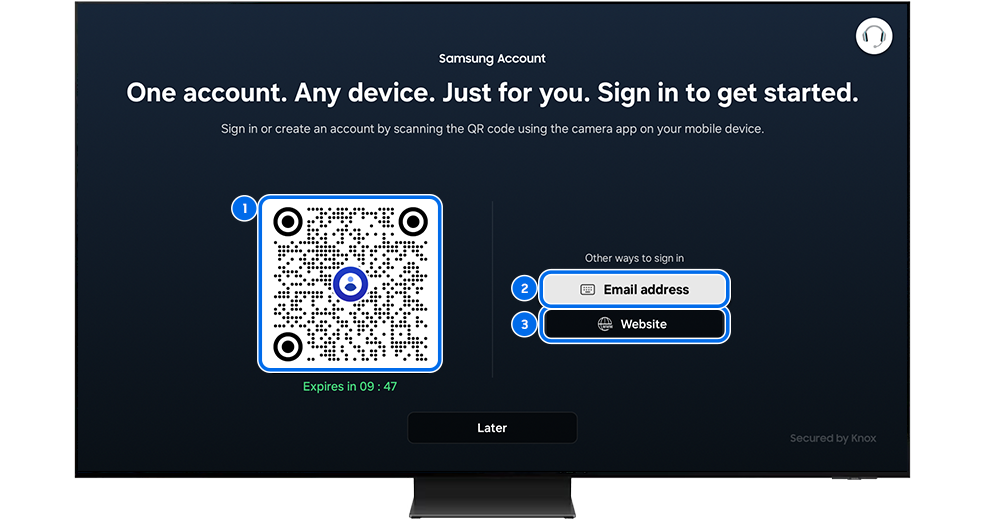
Here’s how you can sign in:


Option 1. Scan the QR code with your mobile device to sign in.


Option 2. Sign in with your registered email and password. Select Forgot Password if you forgot the password.


Option 3. To sign in through a web browser select Website to get the link. After entering the authorization code, you’ll be directed to the sign-in page.
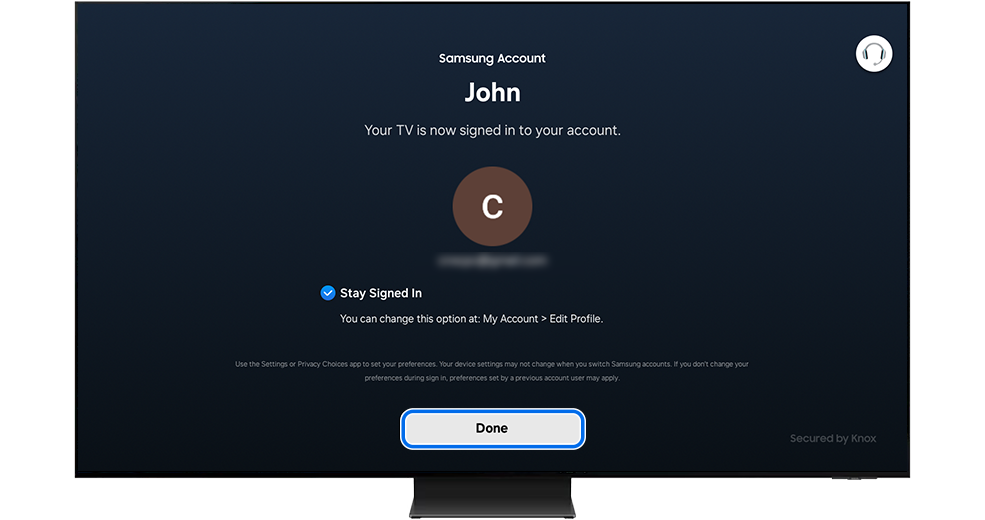
Step 3. Select Done to return to the Home screen.
Note:
- If you’re having trouble with your Samsung Smart TV, check for available software updates.
- Screenshots may vary depending on your TV model and software version.


Service Centers


Locate the nearest Samsung service center to have your product checked.
Thank you for your feedback!
Please answer all questions.
Contact Info
WhatsApp
![WhatsApp]()
![WhatsApp]()


Monday to Sunday
8:00 a.m. a 12:00 a.m.
LiveChat
![LiveChat]()
![LiveChat]()


Monday to Sunday
8:00 a.m. a 12:00 a.m.