A device I’ve sold or handed in is still visible on SmartThings Find
Last Update date : Nov 24. 2026
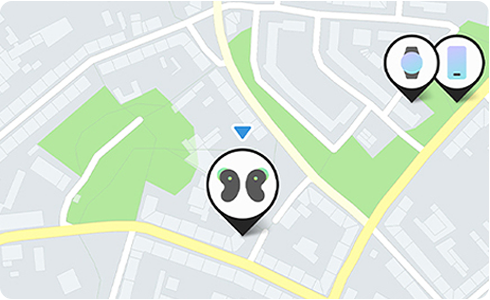
You can sign into the SmartThings and add or delete any device registered.
Deleting a device you no longer own
1
Open SmartThings and select SmartThings Find.
2
Select the device you wish to delete, then use the link below to go to the SmartThings Find site.
3
Select the More button in the top right corner and delete the device.
![Screen to select the device to delete, then click the map.]()
![Screen to select the device to delete, then click the map.]()
![Screen to use link at the bottom to go to the “Find My Mobile” site.]()
![Screen to use link at the bottom to go to the “Find My Mobile” site.]()
![Click “More” in the top right corner in the SmartThings Find.]()
![Click “More” in the top right corner in the SmartThings Find.]()
![Tap “Remove” in the SmartThings Find.]()
![Tap “Remove” in the SmartThings Find.]()


Step 1. Tap the device you want to delete, then click the device.


Step 2. Click the Find My Mobile link at the bottom of the screen.


Step 3. Tap ⋮ symbol in the top right of the screen.


Step 4. Tap Remove.


Service Centers


Locate the nearest Samsung service center to have your product checked.

Thank you for your feedback!
Please answer all questions.
Contact Info
LiveChat
![LiveChat]()
![LiveChat]()


Attention with our expert staff in Samsung products.
Monday to Sunday
8:00 a.m. a 12:00 a.m.
More communication Channels
There are a number of a different ways of contacting us via Live Chat, Email and more.
Face to face Support
Whether your product is in warranty or out of warranty, we're here to help.