How to delete and reinstall TV apps
Important Note: The information on this page is for Hong Kong products only. Models, sequences or settings will vary depending on location and/or where the product had been purchased. To be redirected to your local support page please click here.
Watch the video on "How to delete and reinstall TV apps":
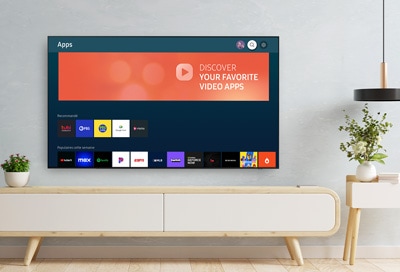
Are unused apps cluttering your Samsung TV’s home screen, or is there an app you would like to reinstall? The following step-by-step instructions will assist you in uninstalling as well as reinstalling apps so your TV viewing experience is completely customized to your preferences.
If an app is not functioning properly on your Samsung TV, you can try reinstalling it.
Or, you can try completely deleting the app and then reinstalling it.
Note: Default apps that are provided with the TV, such as Netflix and YouTube, cannot be deleted.


If you'd like to delete and reinstall the app, select Delete from the list, and then select Delete.


Note: Deleting an app will also remove all data associated with the app.


Once the installation is complete, a pop-up menu will appear in the top right corner.

Depending on the app, you may be prompted to follow different on-screen instructions to set up the app.
If the above information does not match what your product is showing, you may check the User Manual for your product. If you are unable to solve the problem, please contact us for further assistance.
Thank you for your feedback!
Please answer all questions.
RC01_Static Content : This text is only displayed on the editor page