在您的三星智能電視上設置 Hue Sync
最後更新日期 : 2026年4月13日
重要提醒:此頁面的資訊只適用於香港產品。產品型號、畫面序列或設定會根據您所在地區及/或購買產品的地區而不同。請按此跳轉至您所在地區的服務支援頁面。
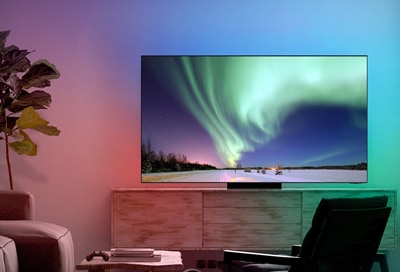
三星智能電視上的 Philips Hue 應用程式讓您在觀看電視時享受無縫智慧照明體驗。此功能更可以配合 Netflix 或 Disney+ 一併使用。三星和 Philips Hue 的合作為您帶來刺激的沉浸式觀賞體驗,無論是節目、電影或遊戲,皆可提供極致享受。Philips Hue 應用程式支援所有圖像格式,包括 8K、4K 和 HDR 10+。
準備項目
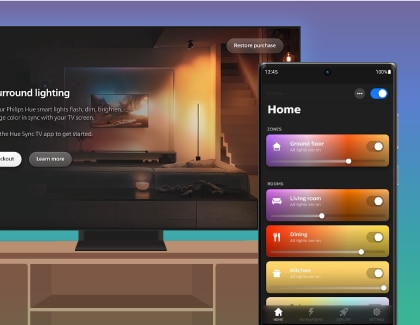
使用 Philips Hue 前請先準備:
- 2024 年或更新型號的三星智能電視
- Philips Hue 流動裝置應用程式
- Philips Hue 電視應用程式
- Philips Hue 帳戶
- Philips Hue Bridge
- 與 Philips Hue 相容的燈具
截至2026年4月的服務可用性:
|
型號年份 |
2021 及以前 |
2022 |
2023 |
2024 |
2025 |
2026 及以後 |
|---|---|---|---|---|---|---|
|
電視 |
不適用 |
Q60B及以上 |
Q60C及以上 |
Q60D及以上 |
Q7F及以上 |
U9000H及以上 (不包括 M70H) |
|
智能顯示器 |
不適用 |
M80B, G65B, G70B, G85SB, G97NB |
M80C, M70C, S90PC G70NC, G95SC, G97NC |
M80D, G70D, G80SD, G85SD, G95SD |
M70F, M80F, M90SF |
- |
注意:該服務的可用性可能會在未來變更
設定 Hue Sync
1
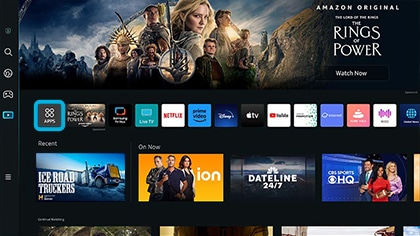
在三星智能電視上選擇APPS。
![Selecting APPS on a Samsung Smart TV]()
2
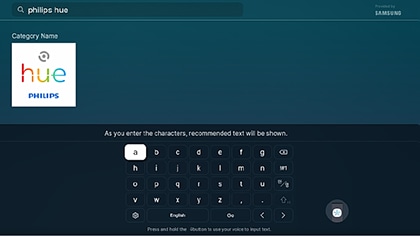
搜索 Philips Hue 應用程式。
![Searching for Philips Hue Sync using the search function on a Samsung Smart TV]()
3
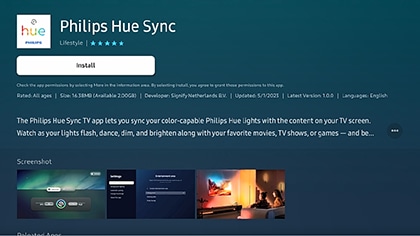
點擊「安裝」(Install) 以下載應用程式。
![Installing the Philips Hue Sync app on a Samsung Smart TV]()
4
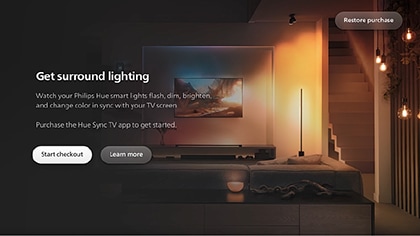
跟隨螢幕上的指示購買應用程式。
![Selecting Start checkout on the Philips Hue Sync screen on a Samsung Smart TV]()
5
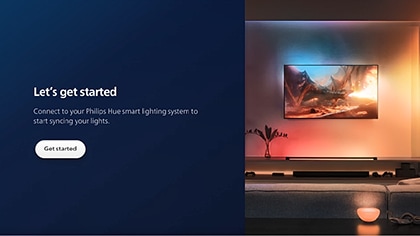
下載完成後,即可連接您的 Philips Hue 系統,開始體驗。
![Selecting Get started on the Philips Hue Sync screen on a Samsung Smart TV]()
6
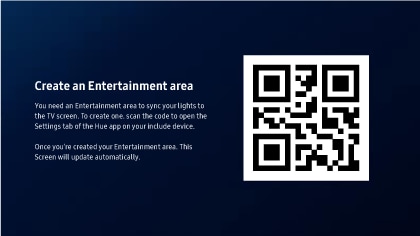
使用您的流動裝置來掃瞄電視螢幕上的二維碼以進行連接。
![A QR code for Philips Hue Sync displayed on a Samsung Smart TV]()
請注意:
- 掃瞄二維碼前,確保您已在流動裝置上安裝 Philips Hue 應用程式。
- 將您的流動裝置和 Philips Hue 連接至同一個無線網絡(Wi-Fi)。
- 確保您已打開流動裝置上的藍牙功能。
7
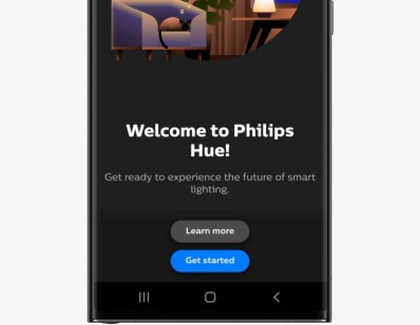
在流動裝置的 Philips Hue 應用程式上點擊「開始使用」(Get started) 。
![The Philips Hue Sync app on a Galaxy phone, with Get started selected]()
8
跟隨螢幕上的指示繼續設定。
9
細閱 Philips Hue 使用條款,然後點擊「我接受」(I accept) 。
10
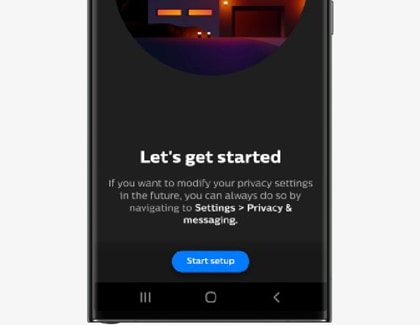
點擊「開始設定」(Start setup) 。
![The Philips Hue Sync app on a Galaxy phone, with Start setup selected]()
11
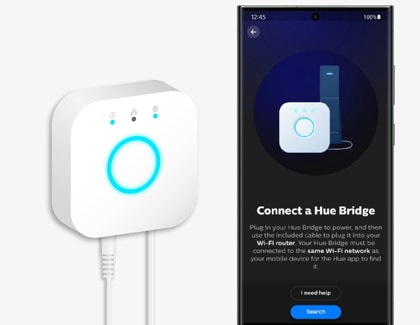
確保您已啟動 Philips Hue Bridge,然後點擊「搜尋」(Search) 。
![Selecting Search in the Philips Hue Sync app on a Galaxy phone, next to a Philips Hue Bridge device]()
12
搜尋到 Philips Hue Bridge 後,按下 Hue Bridge 上的按鈕來建立連接。
13
將 Hue Bridge 連接到流動裝置後,您就可以加入與 Philips Hue 相容的燈具。確保您已經開啟相關燈具,然後點擊「搜尋」 (Search) 。可支援燈光同步的燈具會被自動添加。
![Philips Hue Sync displayed on a Samsung Smart TV, with Search selected on a Galaxy phone next to it]()
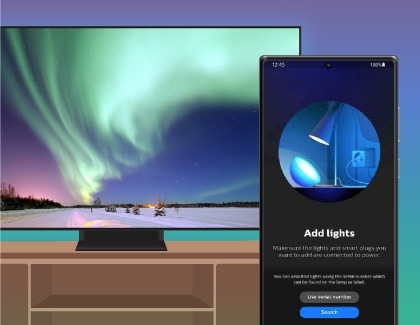
請注意:您可以為燈具進行個人化設定,為其命名。輸入名稱後,點擊儲存。
14
選擇同步選項,開始您的燈光同步體驗。
![Selecting the Sync option in the Philips Hue Sync app on a Samsung Smart TV]()
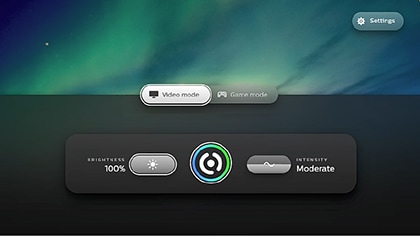
請注意:如果您的三星智能電視沒有進行自動更新,或未有顯示 Philips Hue 的控制面板,請關閉 Philips Hue 電視應用程式,再重新開啟。
15
好好享受!
感謝您提供意見讓我們了解您的需要
請回答所有問題。
RC01_Static Content : This text is only displayed on the editor page