Using the Find app Notification Feature
Samsung's Find features, like Notify when left behind, are designed to help users avoid losing important items, like earbuds. The feature sends notifications to the user when they are far enough away from the item that the connection between the item and the user’s phone is broken.
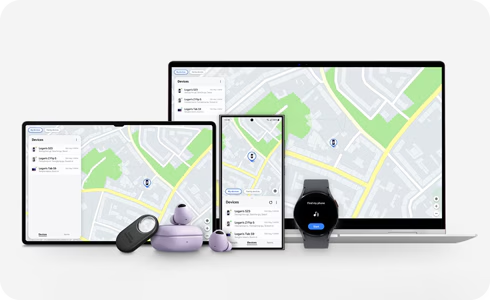
Get notified when you move too far away
If you turn on Notify when left behind, you can receive notifications when a Galaxy device connected to your phone is disconnected. Notify when Found will notify you when the device is found after being lost.
Step 1


Open the Find app.
Step 2


Choose the device you wish to set up notifications for, and select More.
Step 3


Toggle on Notify when left behind and/or Notify me when it's found to enable the features.
Notes:
Supported devices: Galaxy Watch, Galaxy Buds, S Pen Pro, Galaxy SmartTag
Supported devices for the Notify when left behind feature are the same as those for SmartThings Find.
If you set up a safe place, you won't be notified when you move away from your device.
You'll need to turn on location settings on your phone or tablet.
Galaxy SmartTag supports this feature only on Galaxy phones and tablets running Android 12 or higher.
If your tag is a third-party product, you'll need to make sure you have a firmware version that supports notifications when you walk away. Please contact the manufacturer for more details.
Thank you for your feedback!
Please answer all questions.
Contact Info
Contact us
WhatsApp
![]()
![]()

